


FONCTION D'ODOO
Odoo offre toutes les capacités de gestion MRP depuis la vue formulaire de l'ordre de fabrication. Cela oblige les utilisateurs à ouvrir chaque ordre individuellement pour effectuer des actions.
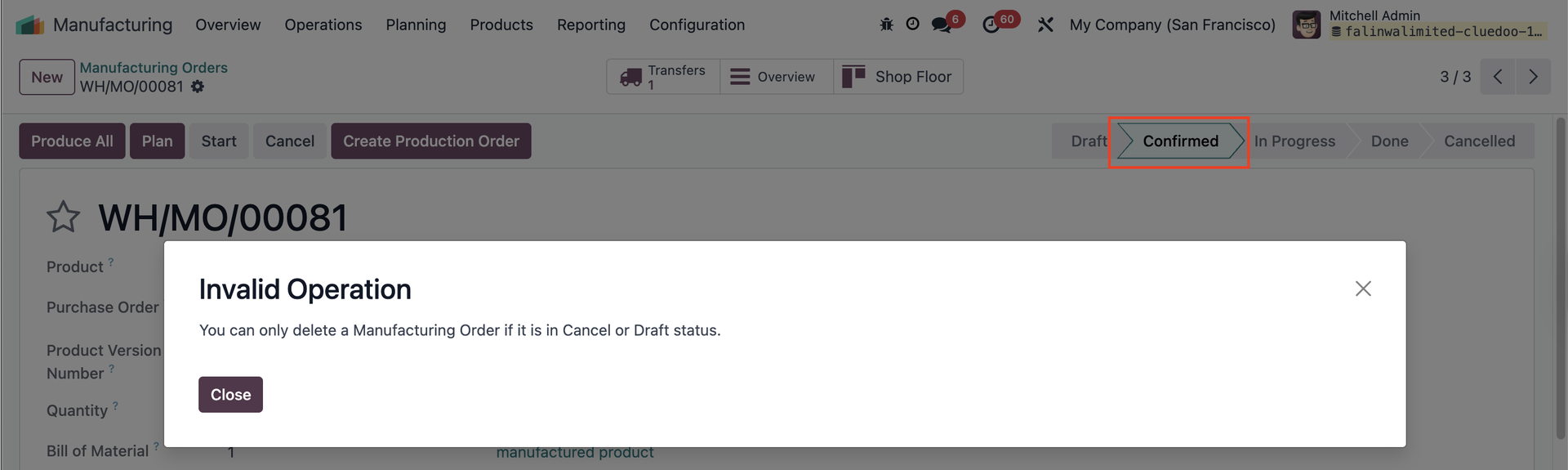
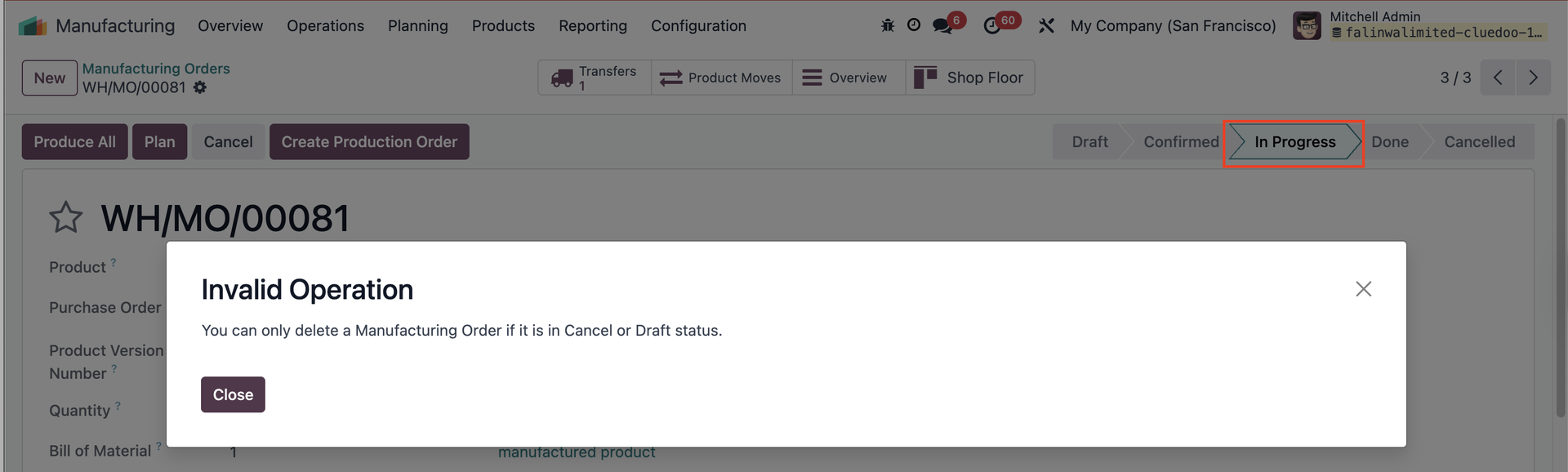
De plus, Odoo permet aux utilisateurs de supprimer les ordres de fabrication même lorsqu'ils sont au statut « Confirmed » ou « In Progress », ce qui peut entraîner des incohérences de données.
FONCTION DE CLUEDOO
Cluedoo enhances production management by introducing:
\t1️⃣ Quick action buttons directly in the list view, offering a general overview and saving time by avoiding the need to open individual form views.
\t2️⃣ Multi-selection actions to process multiple production orders (Production Orders, Manufacturing Orders, or Work Orders) simultaneously.
\t3️⃣ A restriction that prevents the deletion of Manufacturing Orders in Confirmed/In Progress Status, requiring users to cancel them first.
This allows users to validate 80 or more orders in just 3 clicks compared to the 240 clicks needed in standard Odoo (open form view > validate > return to list view), leading to a dramatic increase in operational efficiency and improving overall workflow flexibility.
VÉRIFIER LA DISPONIBILITÉGo to Manufacturing > Manufacturing Orders > choose MO on list view > click Actions > Check Availability Availability of components of the chosen MO will be updated. Note : supprimé à partir de la v17 |  |
BOUTON PLANConfigure the Manufacturing Order (MO) > Set up the Work Order (WO) In the list view, select the MO > Click the "Plan" button > The MO will be scheduled/produced, and the Work Order will display the planned start and end dates. Note : supprimé à partir de la v17 |  |
BOUTON UNRESERVEThis button is to unreserve the quantity of the component that is already reserved Note : supprimé à partir de la v17 |  |
BOUTON CANCELIn the list view, select the MO > Click the button "Cancel" > The MO will be canceled. Note : supprimé à partir de la v17 |  |
CENTRES DE TRAVAIL AUTORISÉSGo to Settings > Users, then add work centers in the "Allowed Work Centers" field. Users will only be able to access the work centers assigned to them. Si aucun centre de travail n'est attribué à un utilisateur, il ne pourra pas confirmer un ordre de fabrication (OF) impliquant un centre de travail non listé dans ses paramètres. Note : supprimé à partir de la v17 |  |
WO READY / WO IN PROGRESSGo to Manufacturing > Overview Cliquez sur WO Ready pour afficher dans la vue liste tous les ordres de travail au statut « Ready ». Cliquez sur WO In Progress pour afficher dans la vue liste tous les ordres de travail au statut « In Progress ». Note : supprimé à partir de la v17 |  |
COMITTMENT DATEOn Manufacturing > Operations > Production Order, we have a field Commitment Date | 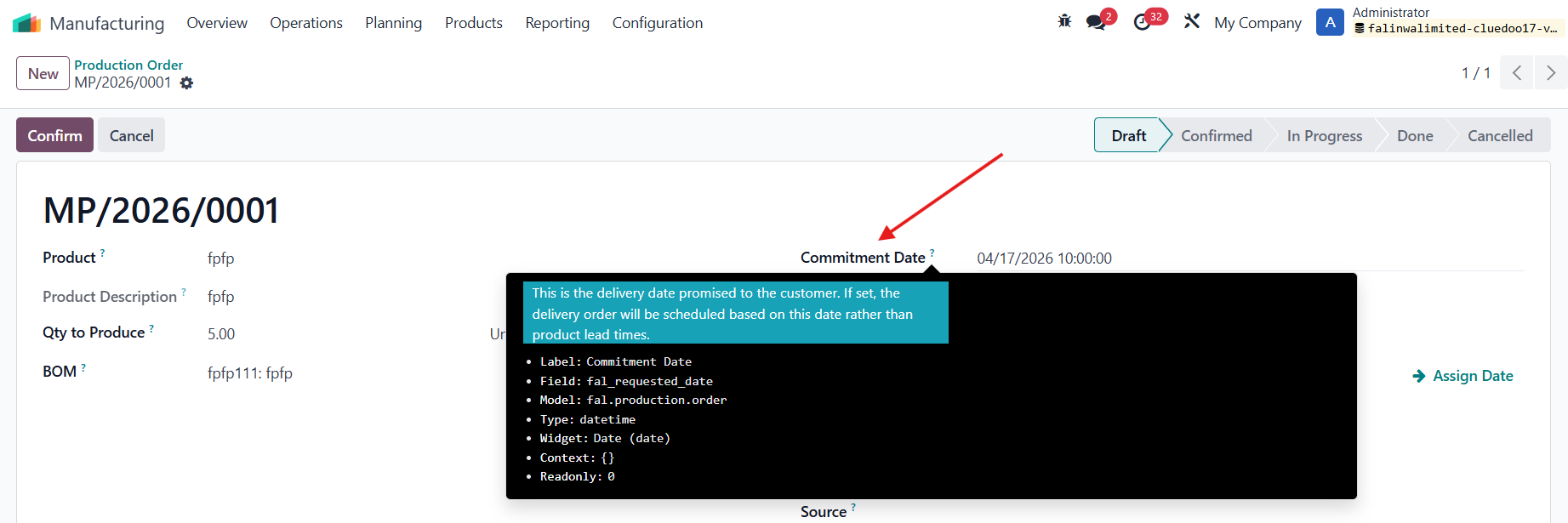 |
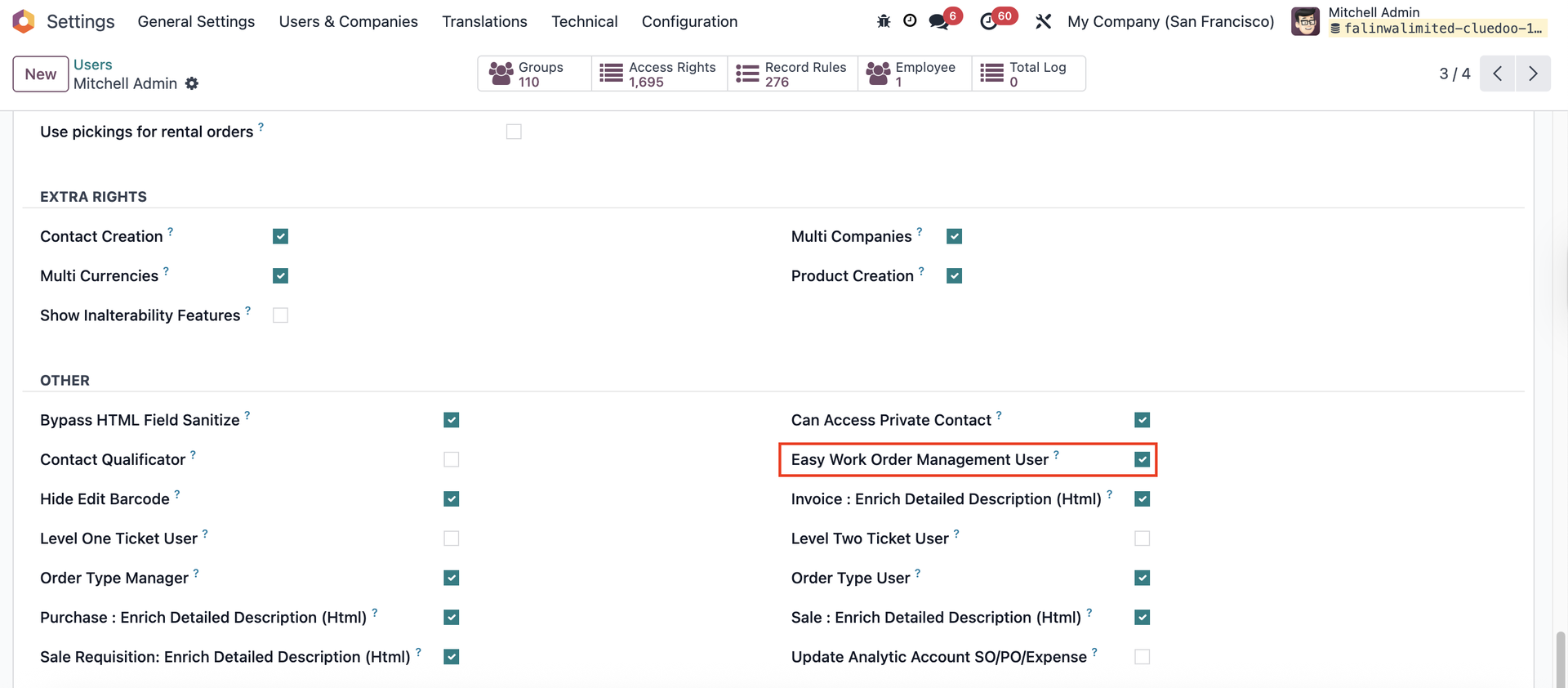
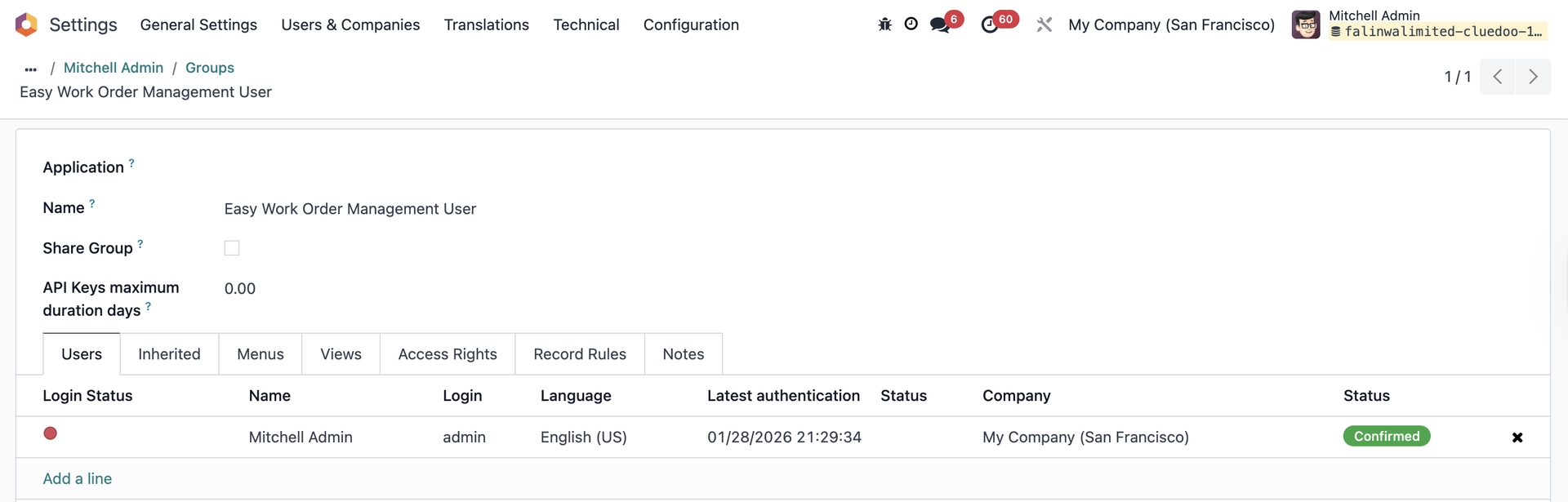
EASY WORK ORDER MANAGEMENT USER
|   |
STATUT POUR DÉMARRERSur les Work Orders, le Status to Start affiche le statut MO/Composants pour un suivi facile. | 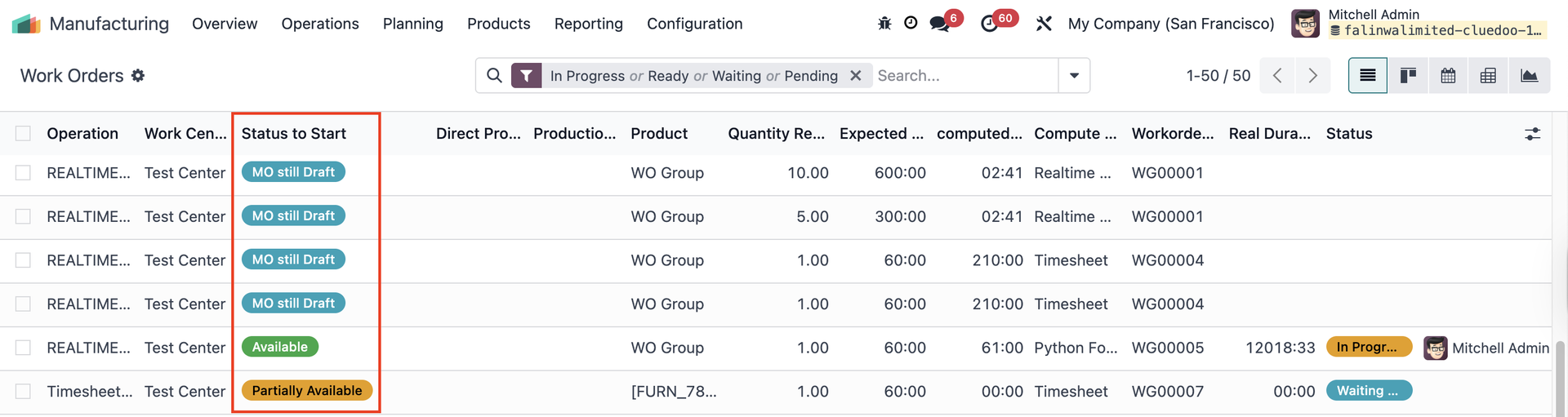 |
RAPPORT SUR LES ORDRES DE FABRICATIONOn a Manufacturing Order, access Print > We have a new report Production Order (Product not Reserved) | 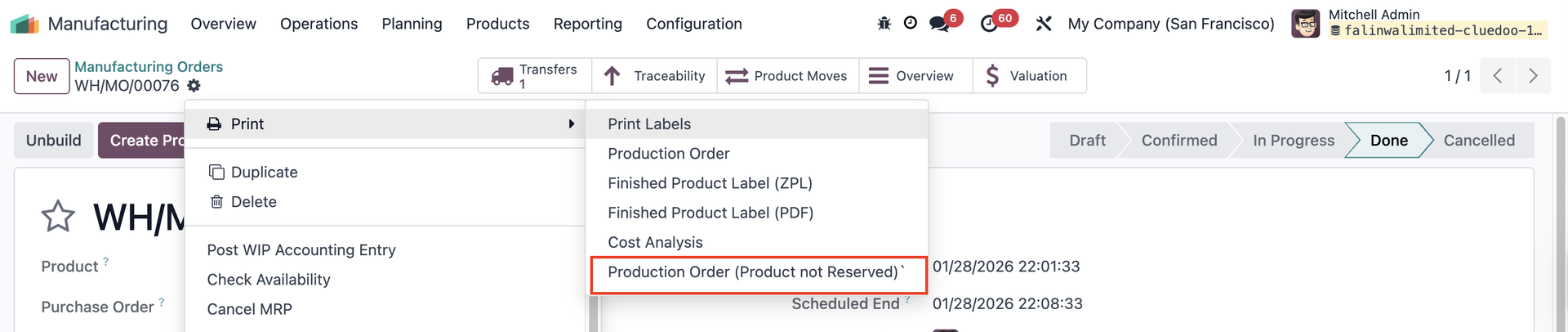 Le rapport 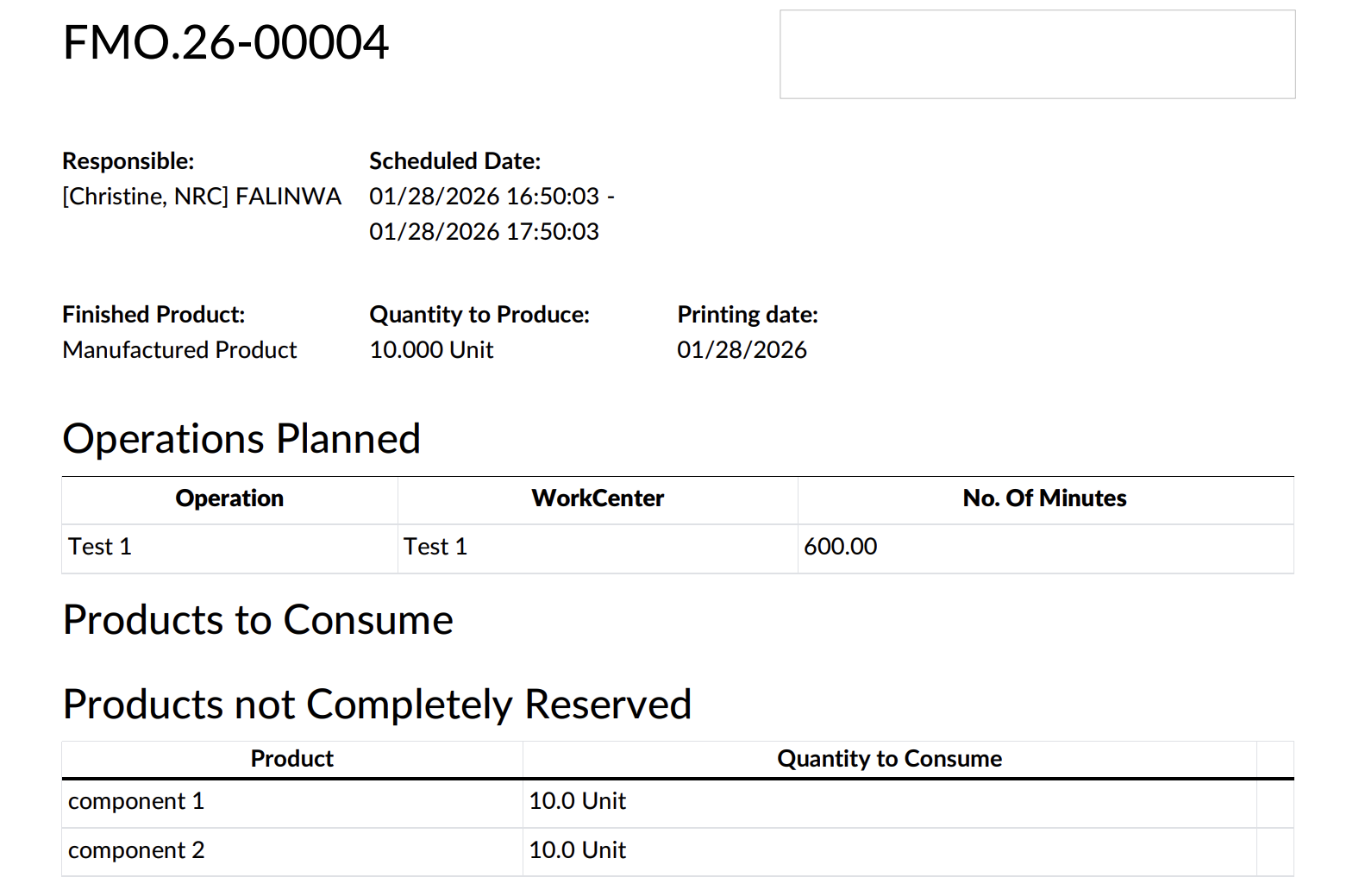 |
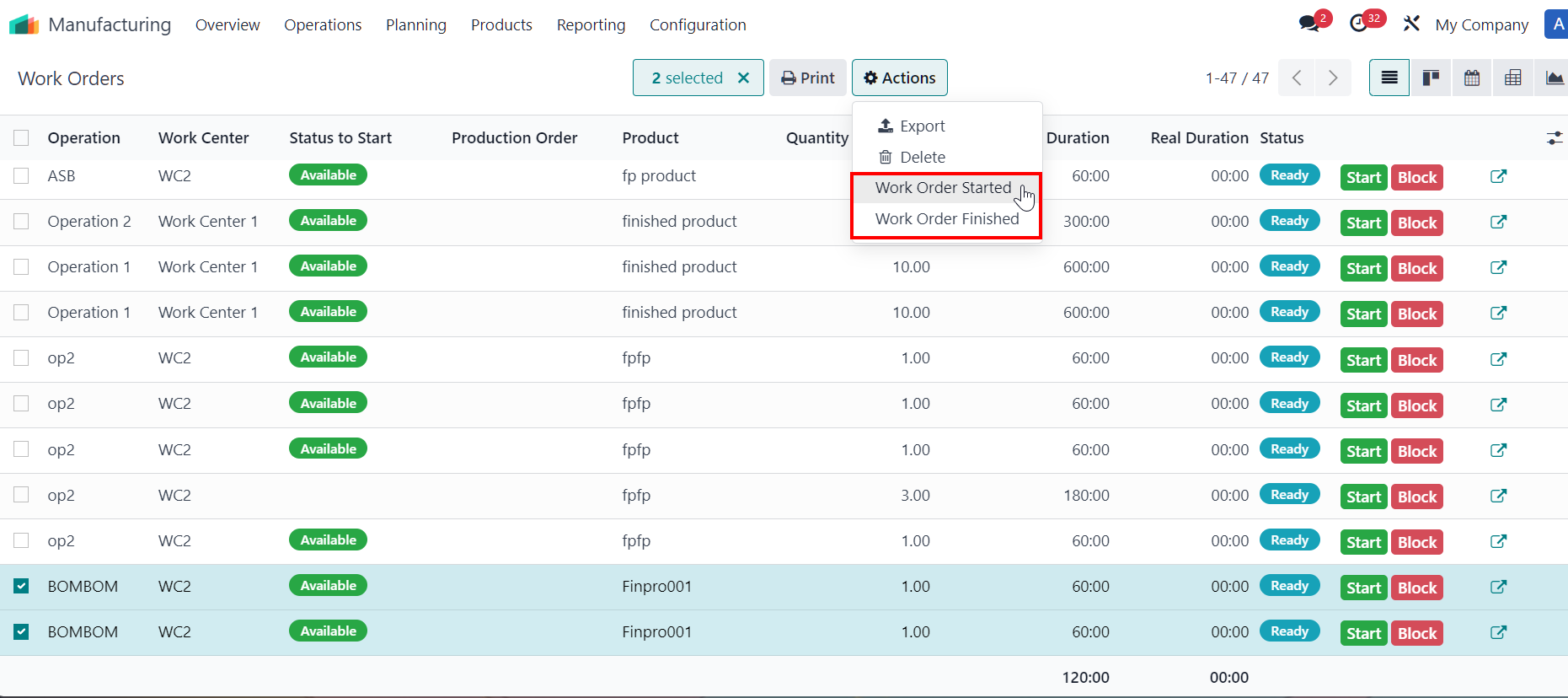
DÉMARRAGE/CLÔTURE EN MASSE DES ORDRES DE TRAVAILSelect multiple work orders > Actions > Work Order Started / Work Order Finished
Remarques :
|  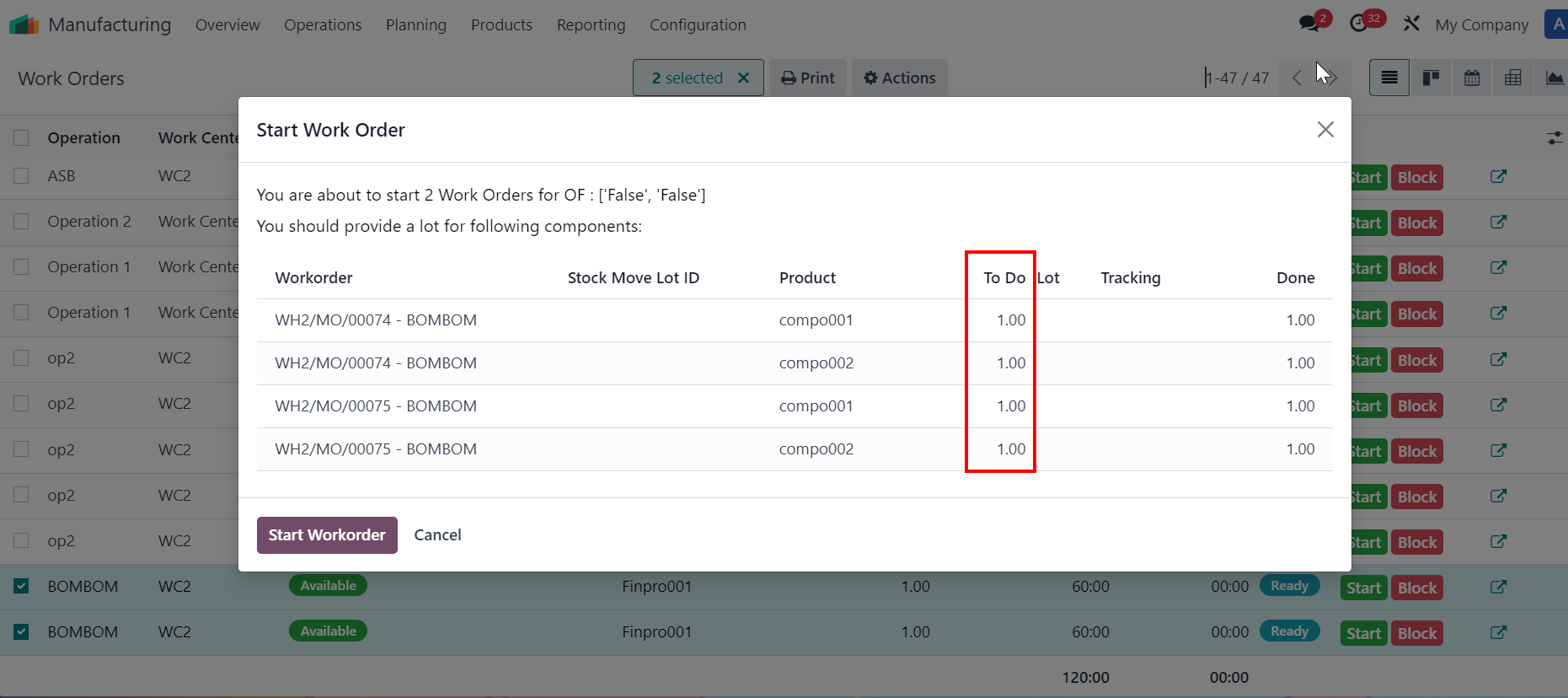 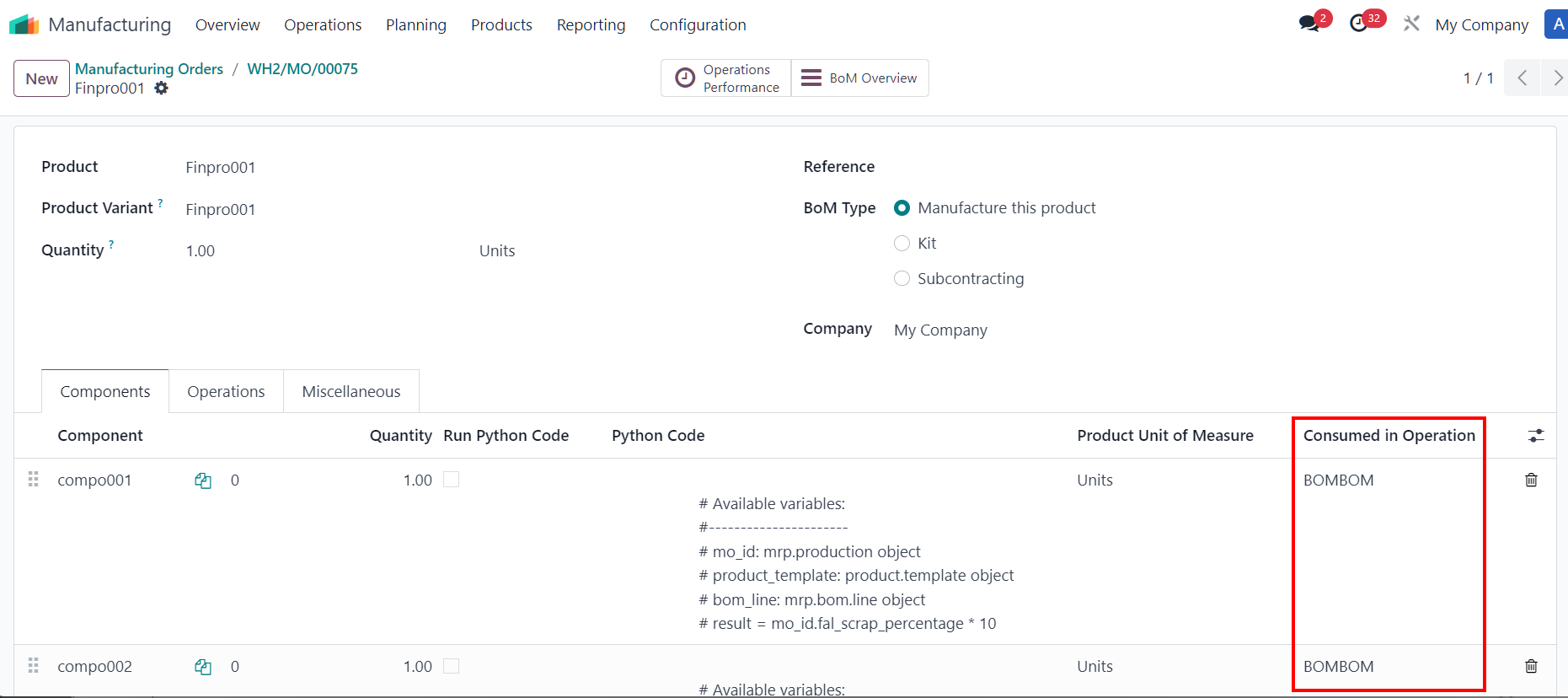 in line start button 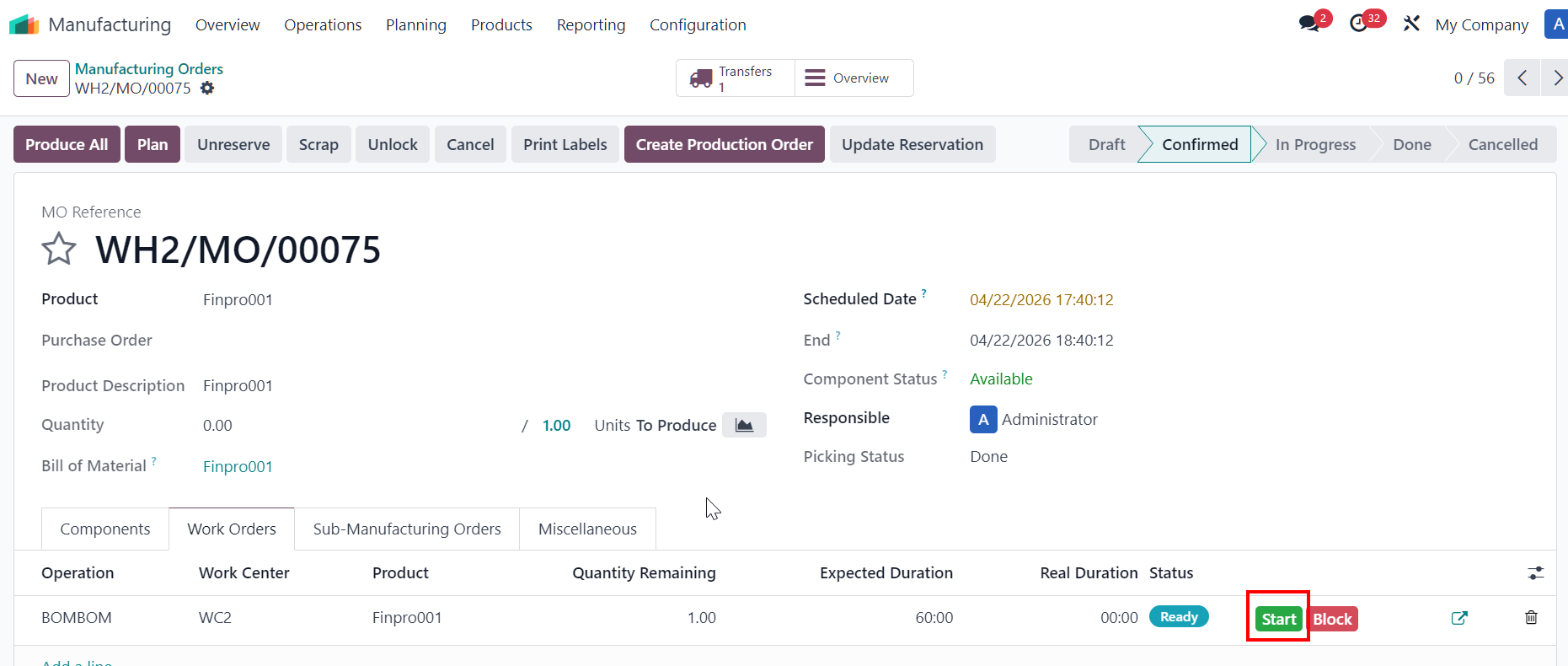 |
| 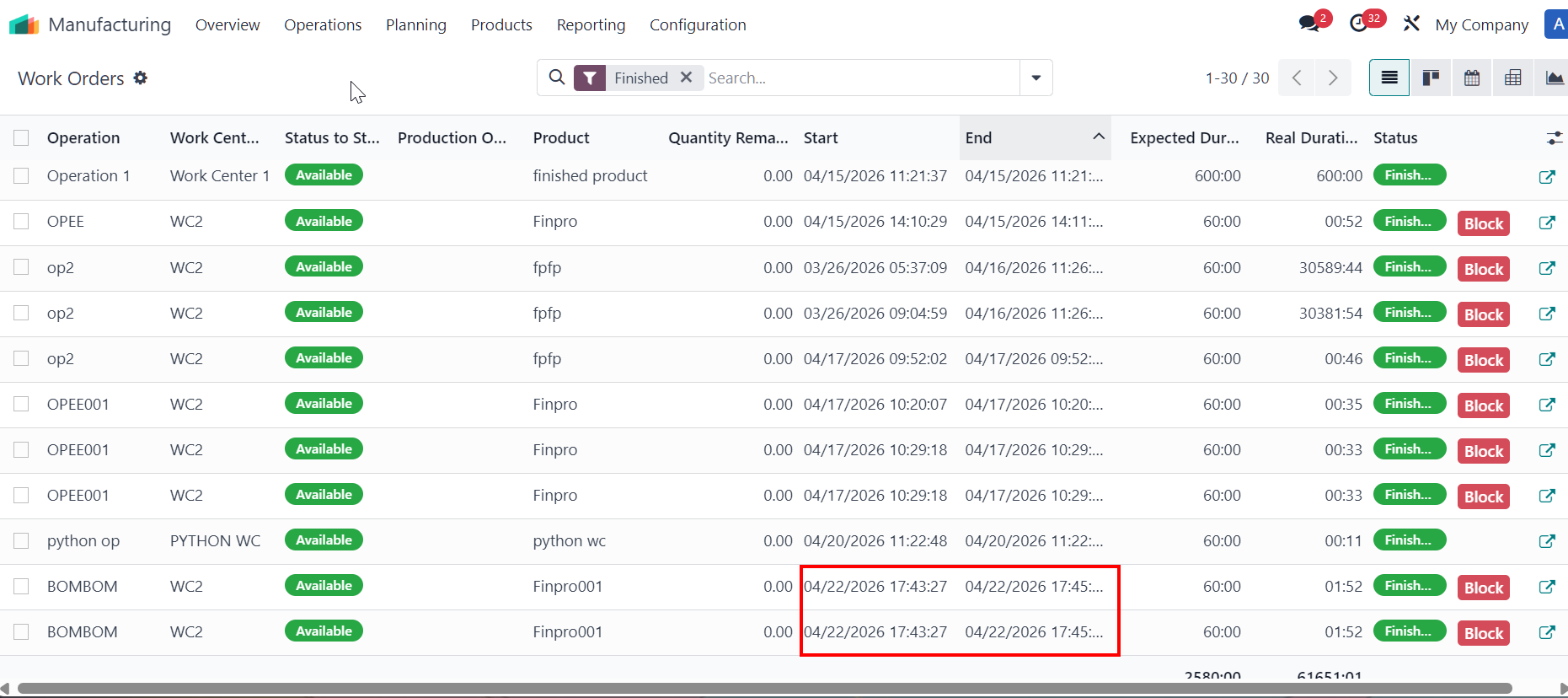 |
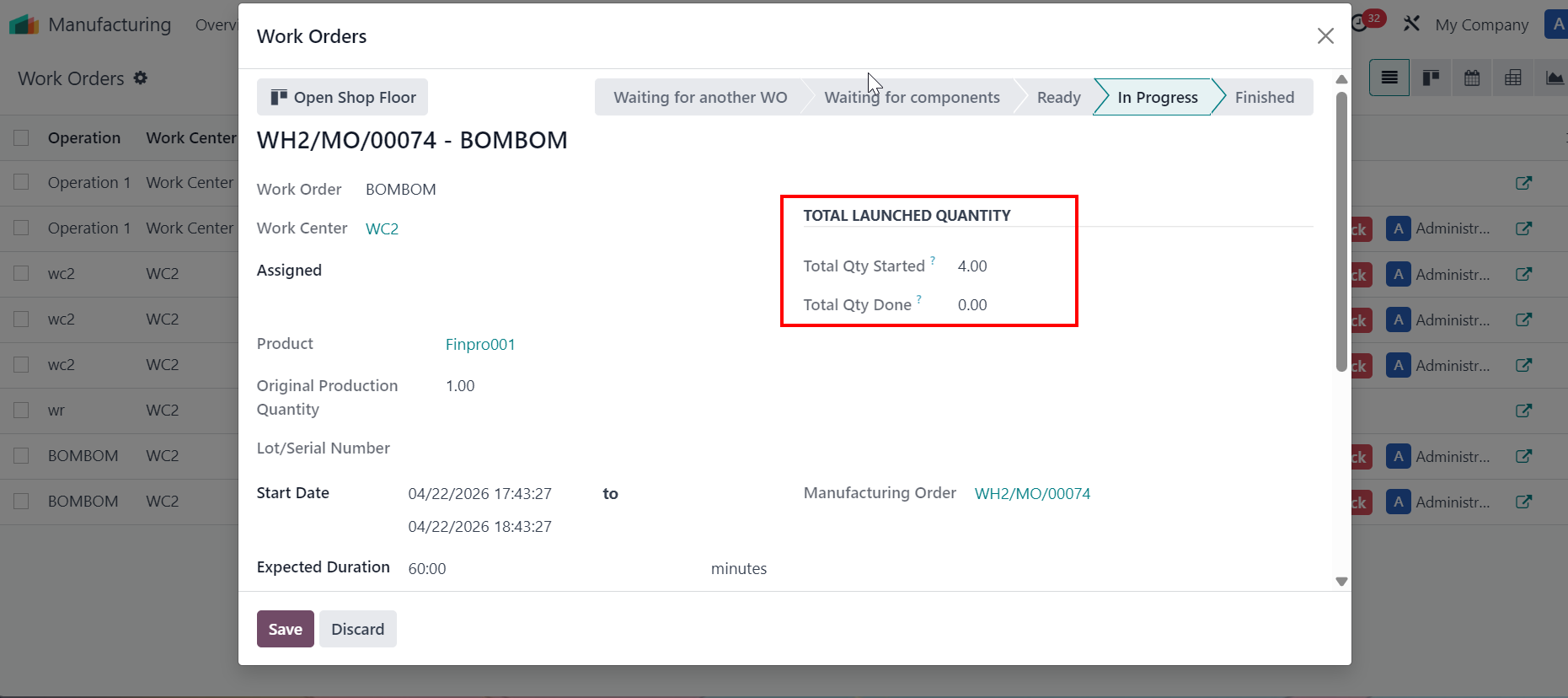
QUANTITÉ TOTALE LANCÉEClick on Start Workorder > The Total Launched Quantity takes values from wizard Start Work order, which is the sum of the components' quantity. Since there are 4 components on the wizard > Total Qty Started = 4. |
|
Once WOs are finished > total quantity done takes value from original production quantity field per work order, which is the total amount of finished goods. Since there are 2 WOs finished for product > the total qty done = 2. | 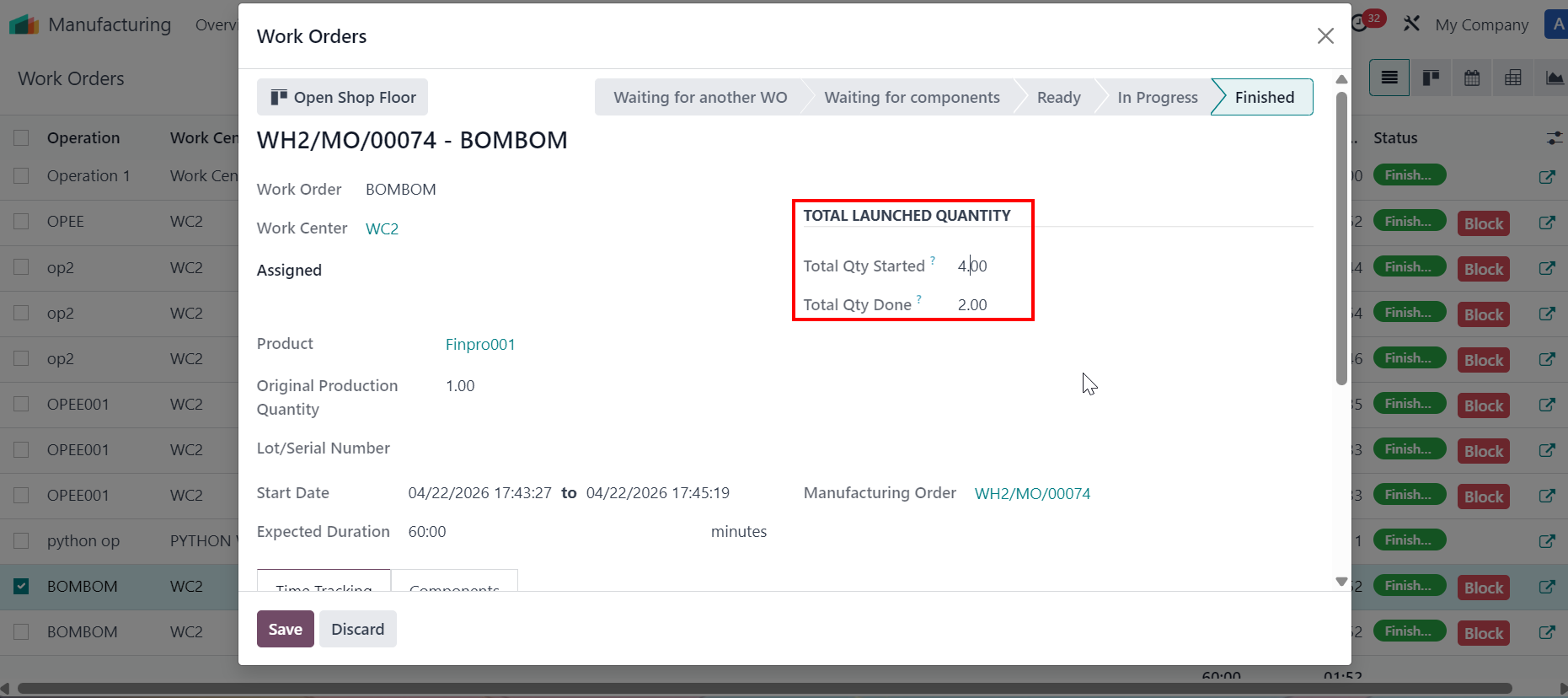 |
SUPPRIMER DES OF CONFIRMED/IN PROGRESS
|   |