


ODOO'S FUNCTION
Odoo offers full MRP management capabilities from the Manufacturing Order form view. This requires users to open each order individually to perform actions.
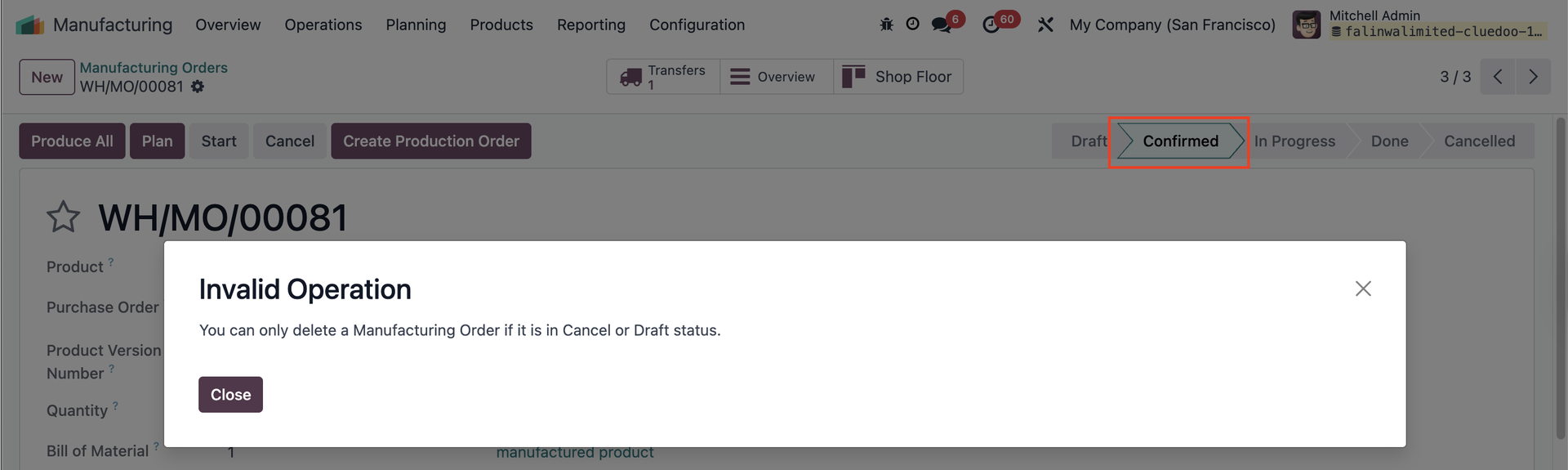
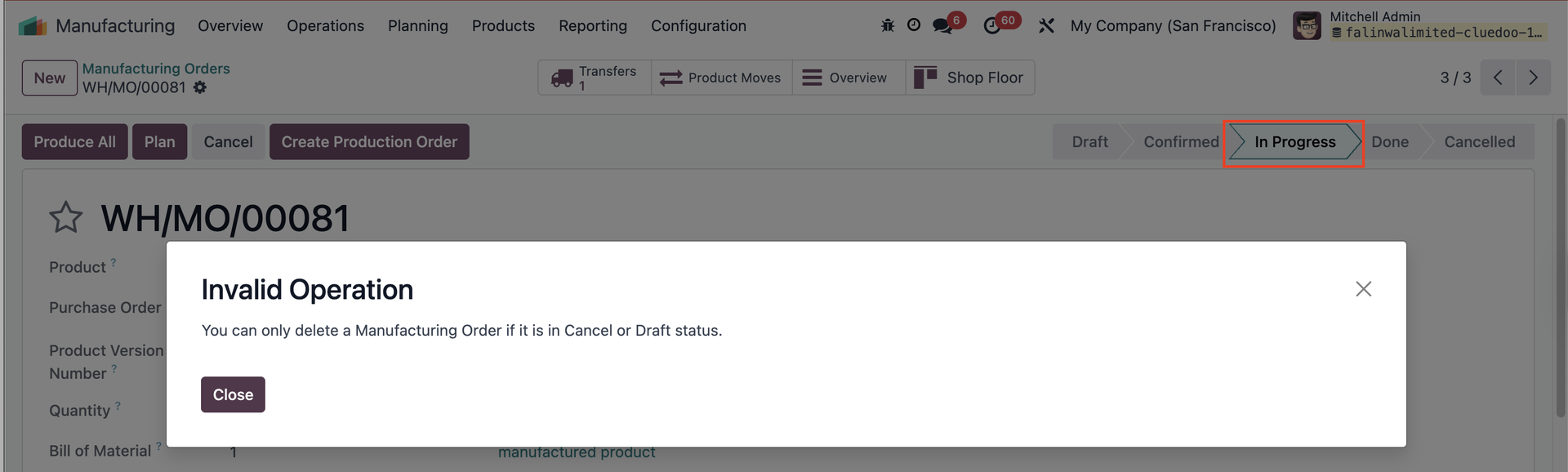
Additionally, Odoo allows users to delete Manufacturing Orders even when they are in the "Confirmed" or "In Progress" status, which can lead to data inconsistencies.
CLUEDOO'S FUNCTION
CLuedoo enhances production management by introducing:
1️⃣ Quick action buttons directly in the list view, offering a general overview and saving time by avoiding the need to open individual form views.
2️⃣ Multi-selection actions to process multiple production orders (Production Orders, Manufacturing Orders, or Work Orders) simultaneously.
3️⃣ A restriction that prevents the deletion of Manufacturing Orders in Confirmed/In Progress Status, requiring users to cancel them first.
This allows users to validate 80 or more orders in just 3 clicks compared to the 240 clicks needed in standard Odoo (open form view > validate > return to list view), leading to a dramatic increase in operational efficiency and improving overall workflow flexibility.
CHECK AVAILABILITYGo to Manufacturing > Manufacturing Orders > choose MO on list view > click Actions > Check Availability Availability of components of the chosen MO will be updated. Note: Removed since v17 |  |
PLAN BUTTONConfigure the Manufacturing Order (MO) > Set up the Work Order (WO) In the list view, select the MO > Click the "Plan" button > The MO will be scheduled/produced, and the Work Order will display the planned start and end dates. Note: Removed since v17 |  |
UNRESERVE BUTTONThis button is to unreserve the quantity of the component that is already reserved. Note: Removed since v17 |  |
CANCEL BUTTONIn the list view, select the MO > Click the button Cancel MRP > The MO will be canceled. Note: Removed since v17 |  |
ALLOWED WORK CENTERSGo to Settings > Users, then add work centers in the "Allowed Work Centers" field. Users will only be able to access the work centers assigned to them. If a user has not been assigned any work centers, they will not be able to confirm a Manufacturing Order (MO) that involves a work center not listed in their user settings. Note: Removed since v17 |  |
WO READY / WO IN PROGRESSGo to Manufacturing > Overview Click on WO Ready to display all Work Orders with the status "Ready" in the list view. Click on WO In Progress to display all Work Orders with the status "In Progress" in the list view. Note: Removed since v17 |  |
COMMITMENT DATEOn Manufacturing > Operations > Production Order, we have a field Commitment Date | 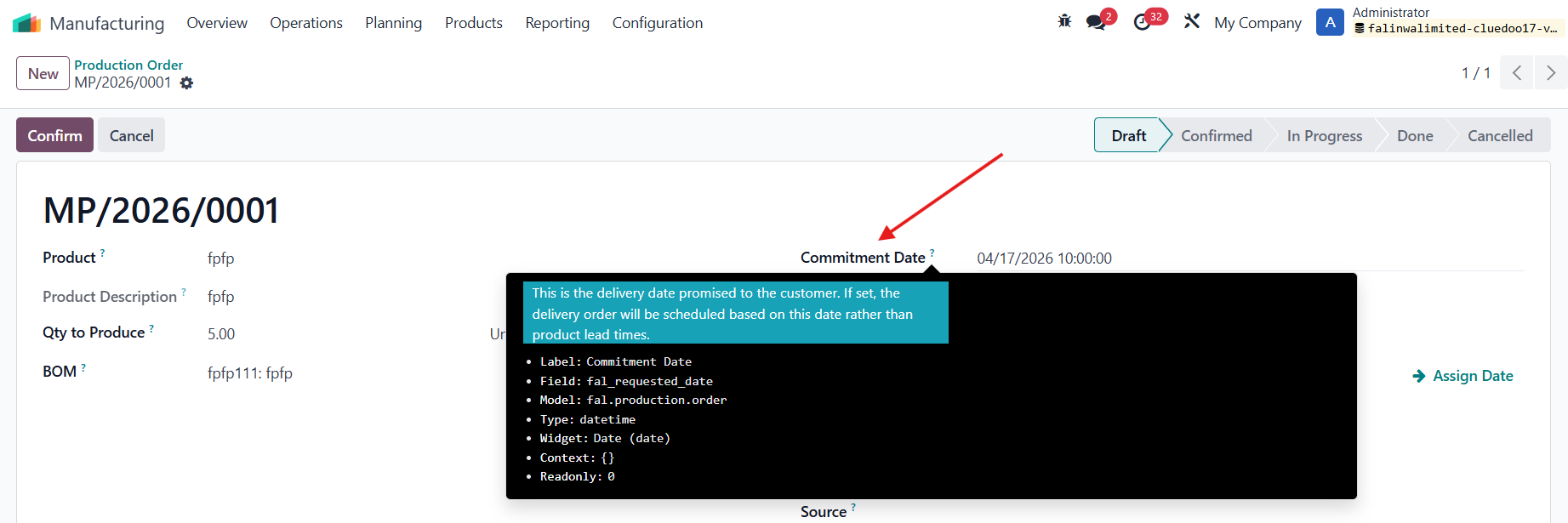 |
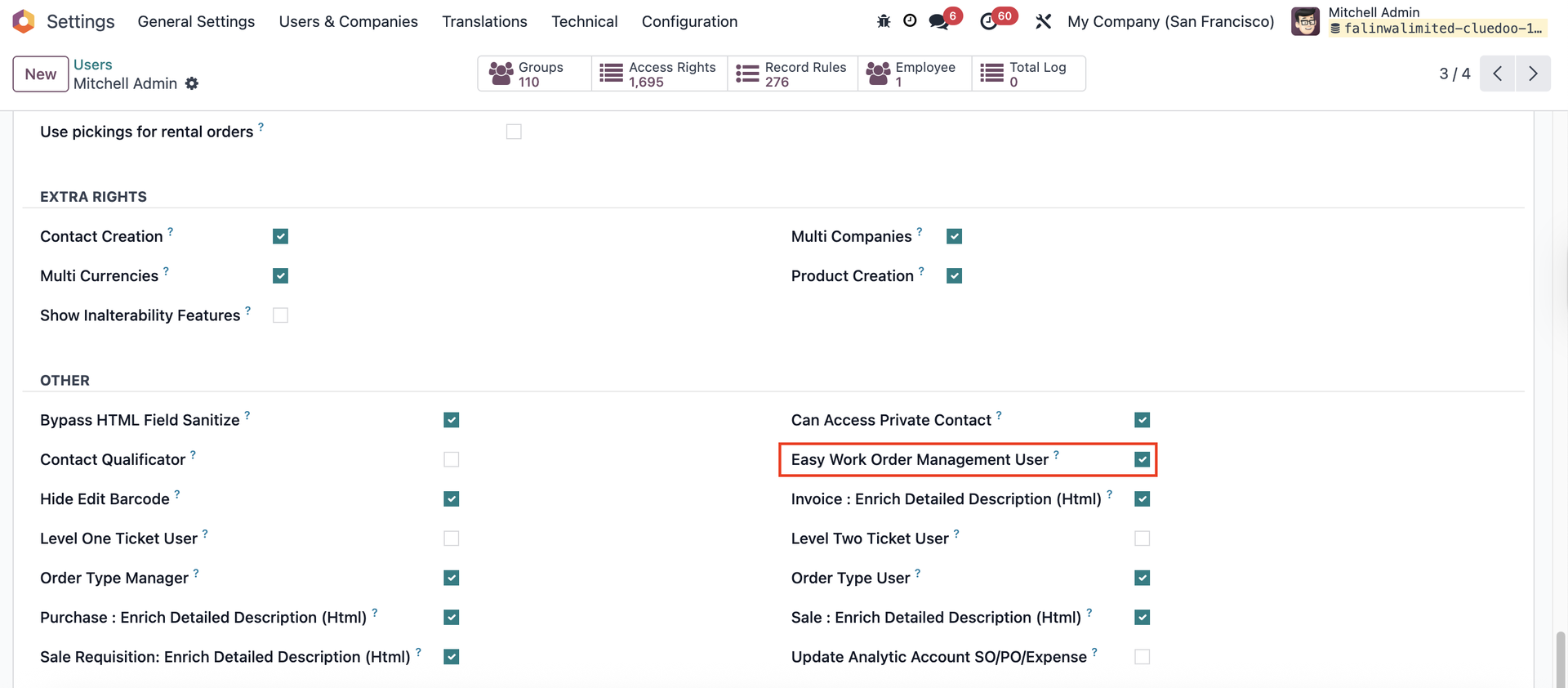
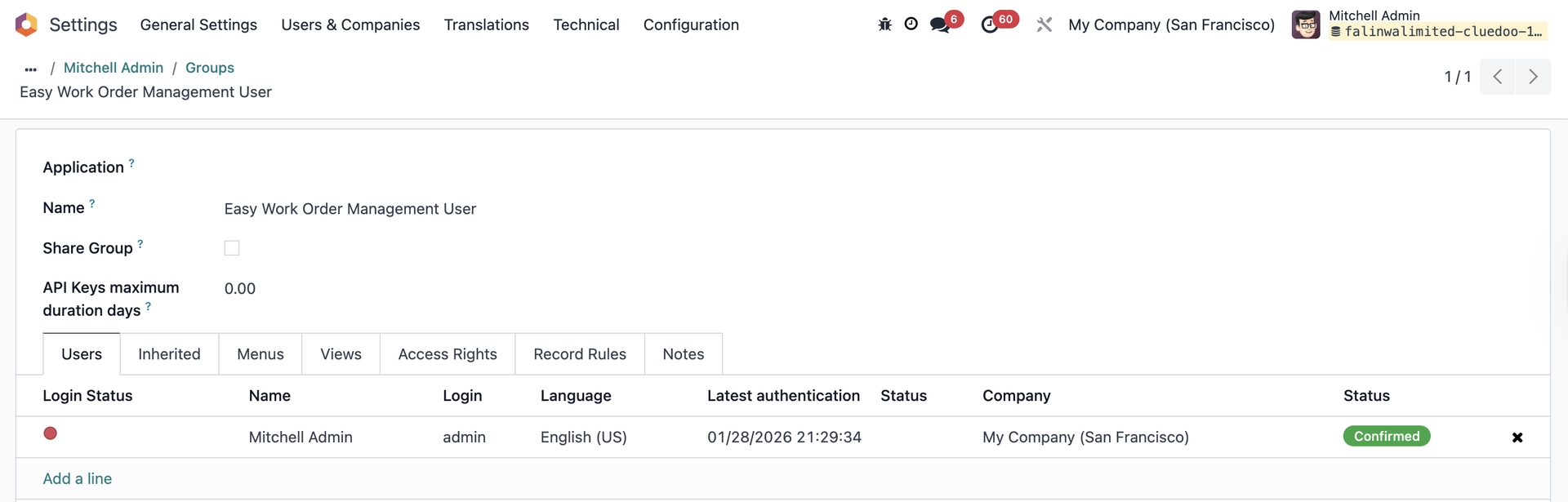
EASY WORK ORDER MANAGEMENT USER
|   |
STATUS TO STARTOn Work Orders, we have the Status to Start that shows the MO/Components status for easy tracking. | 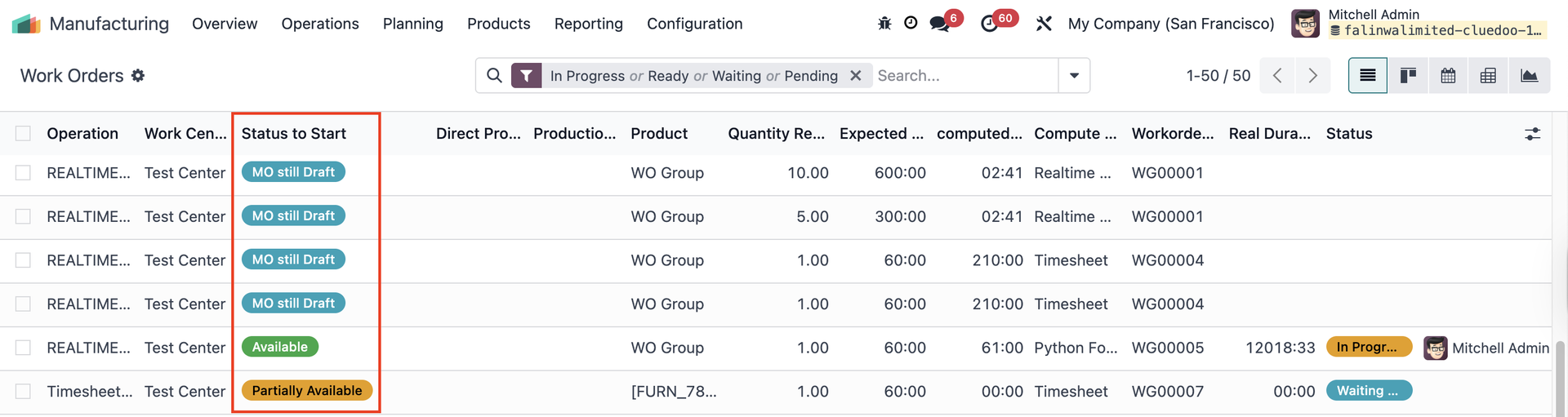 |
REPORT ON MANUFACTURING ORDERSOn a Manufacturing Order, access Print > We have a new report Production Order (Product not Reserved) | 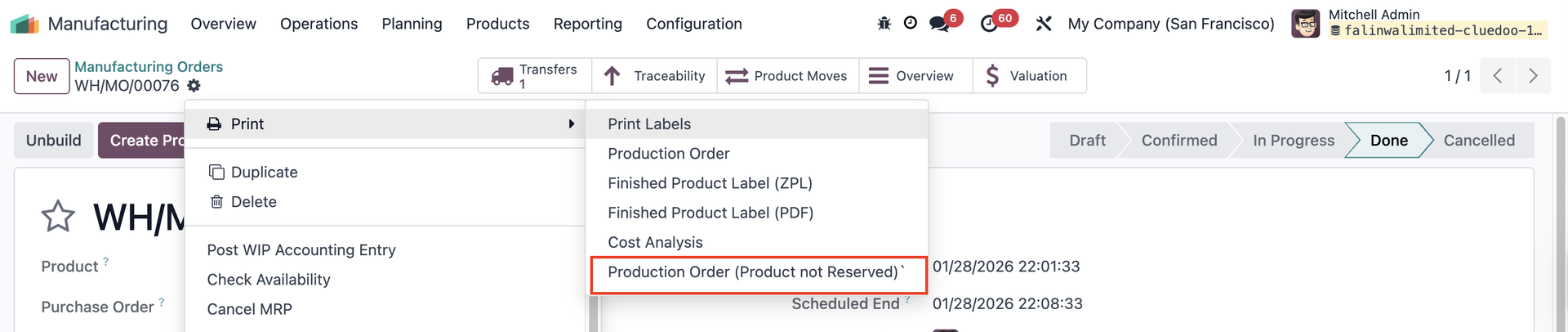 The report 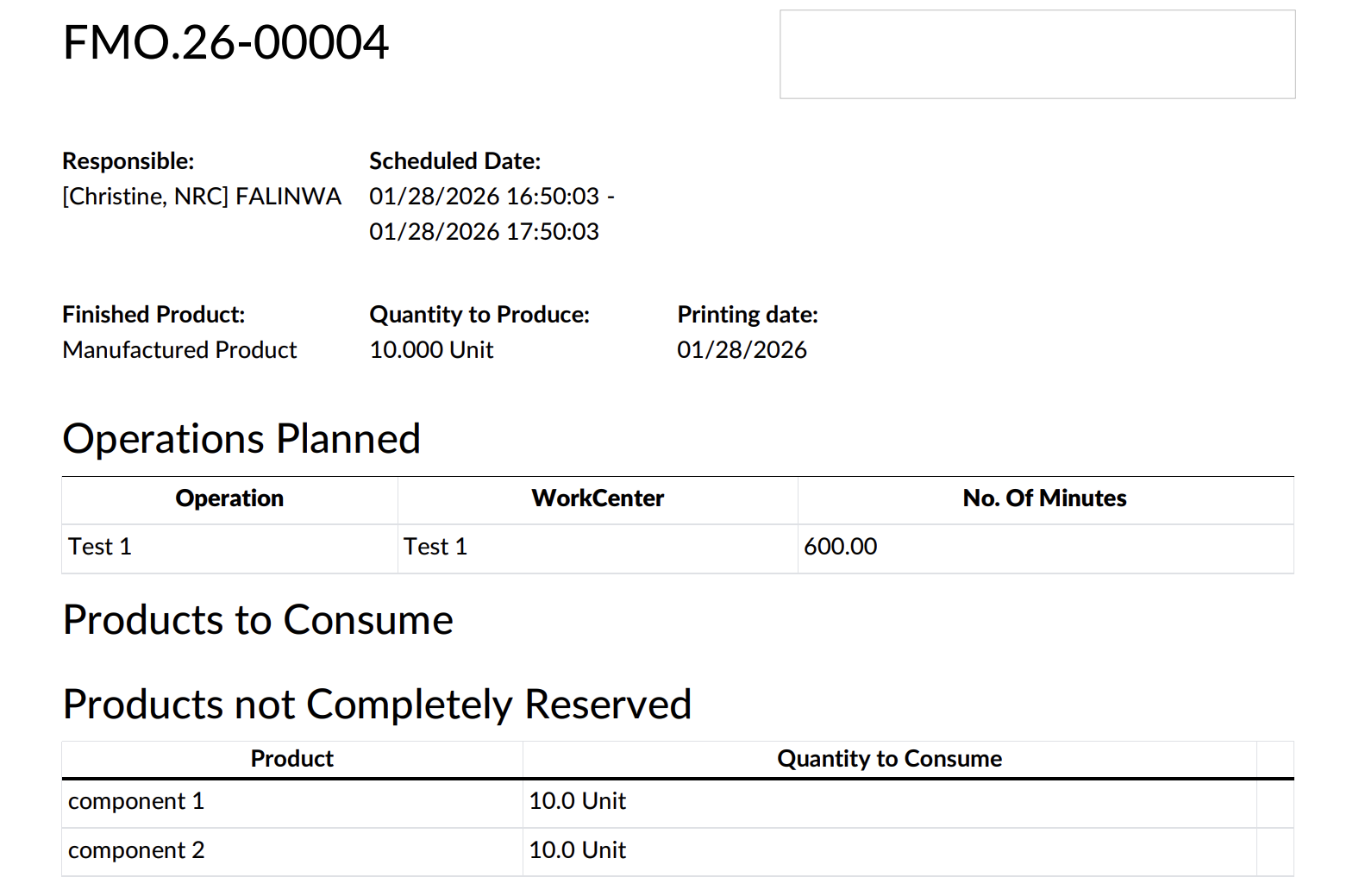 |
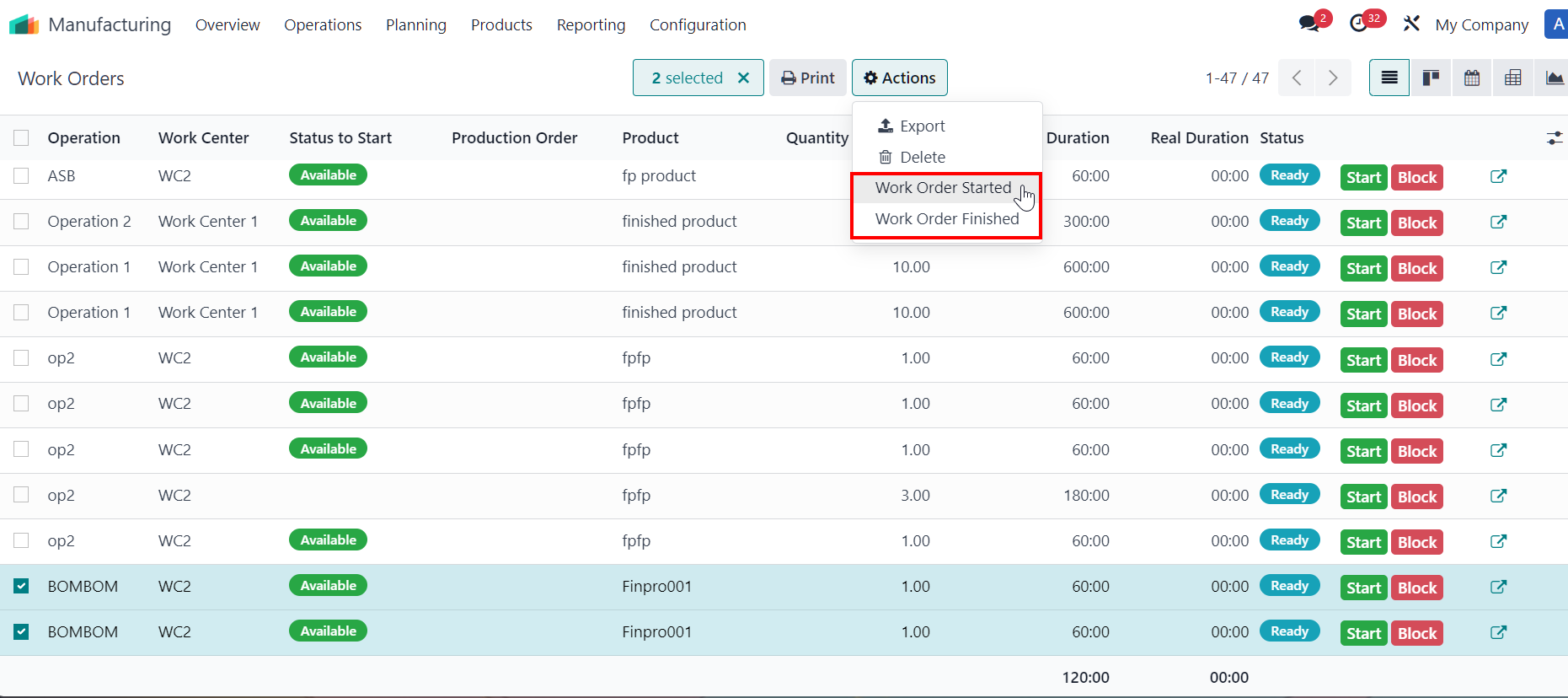
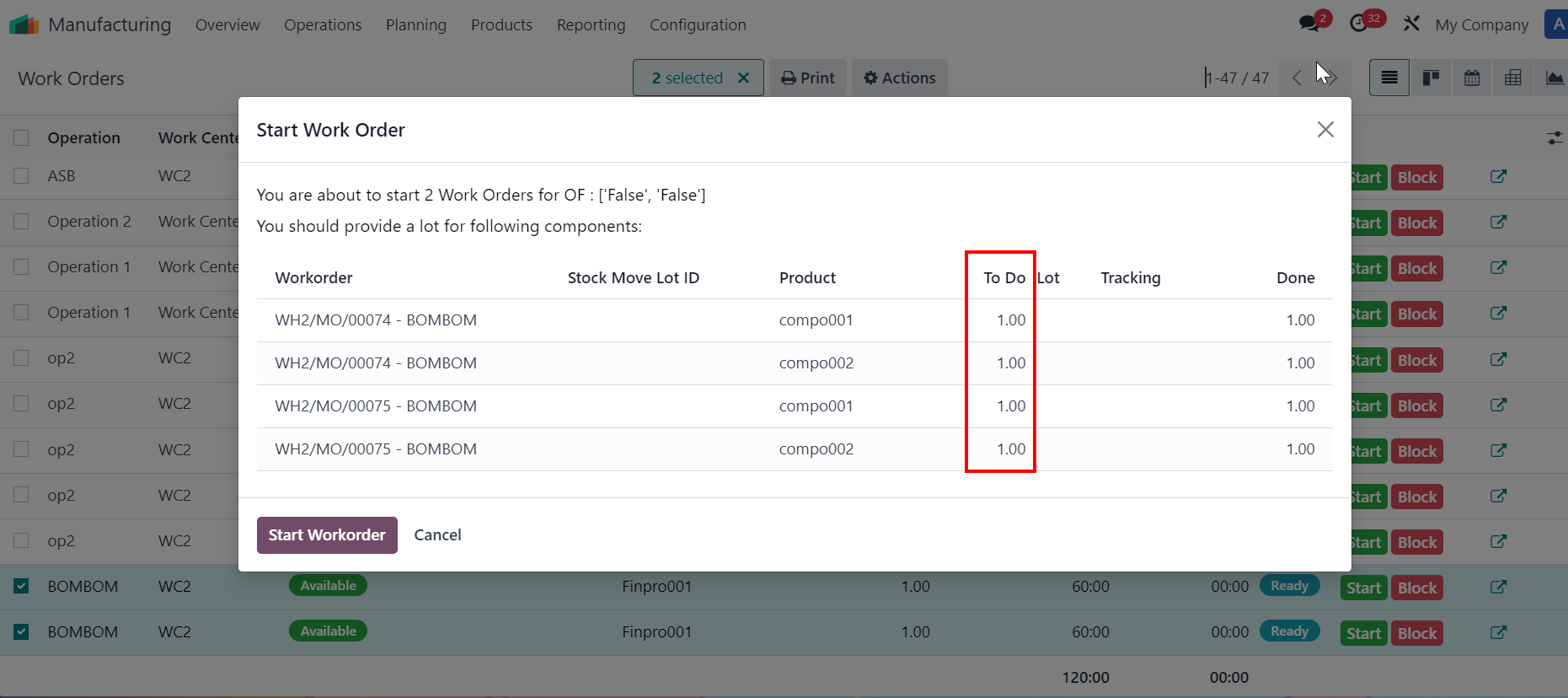
MASS START/FINISH WORK ORDERSSelect multiple work orders > Actions > Work Order Started / Work Order Finished
Notes:
|    In-line start button 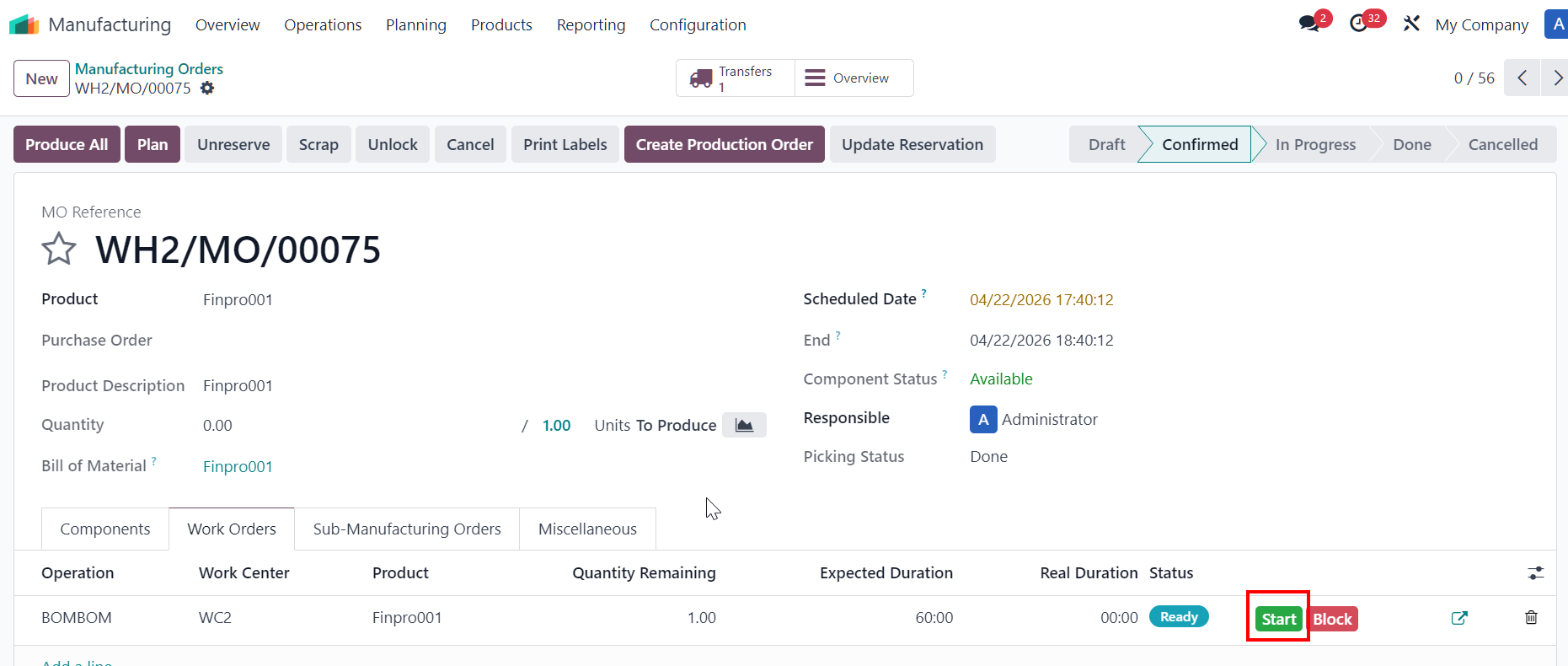 |
|  |
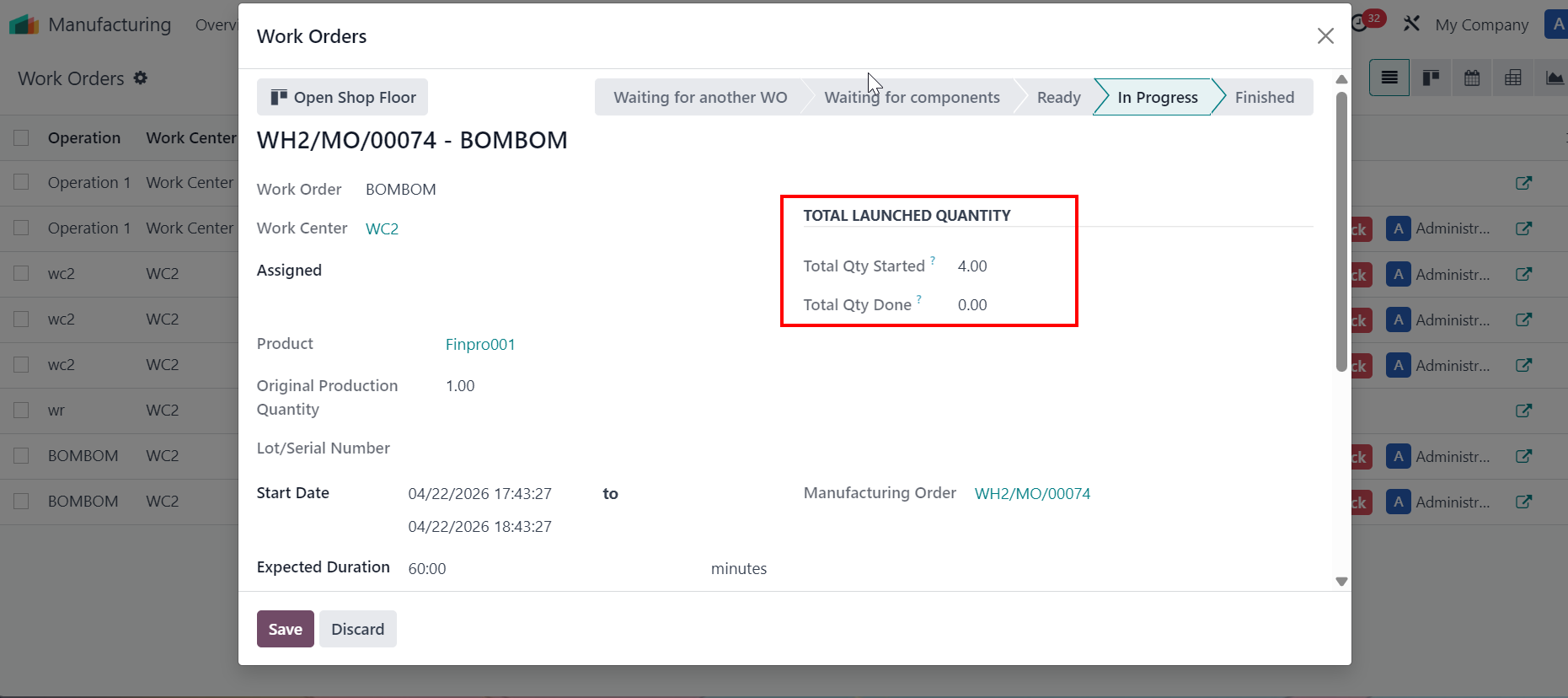
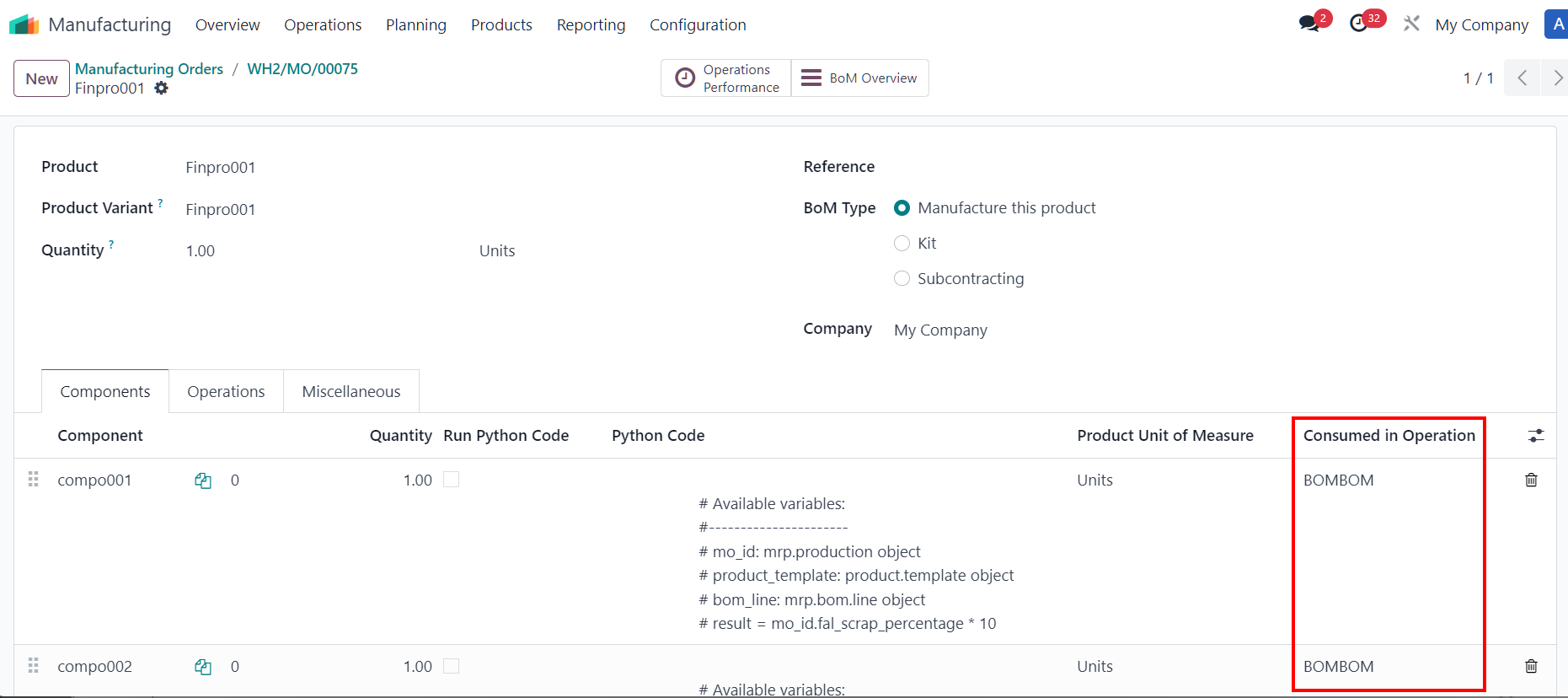
TOTAL LAUNCHED QUANTITYClick on Start Workorder > The Total Launched Quantity takes values from wizard Start Work order, which is the sum of the components' quantity. Since there are 4 components on the wizard > Total Qty Started = 4. |
|
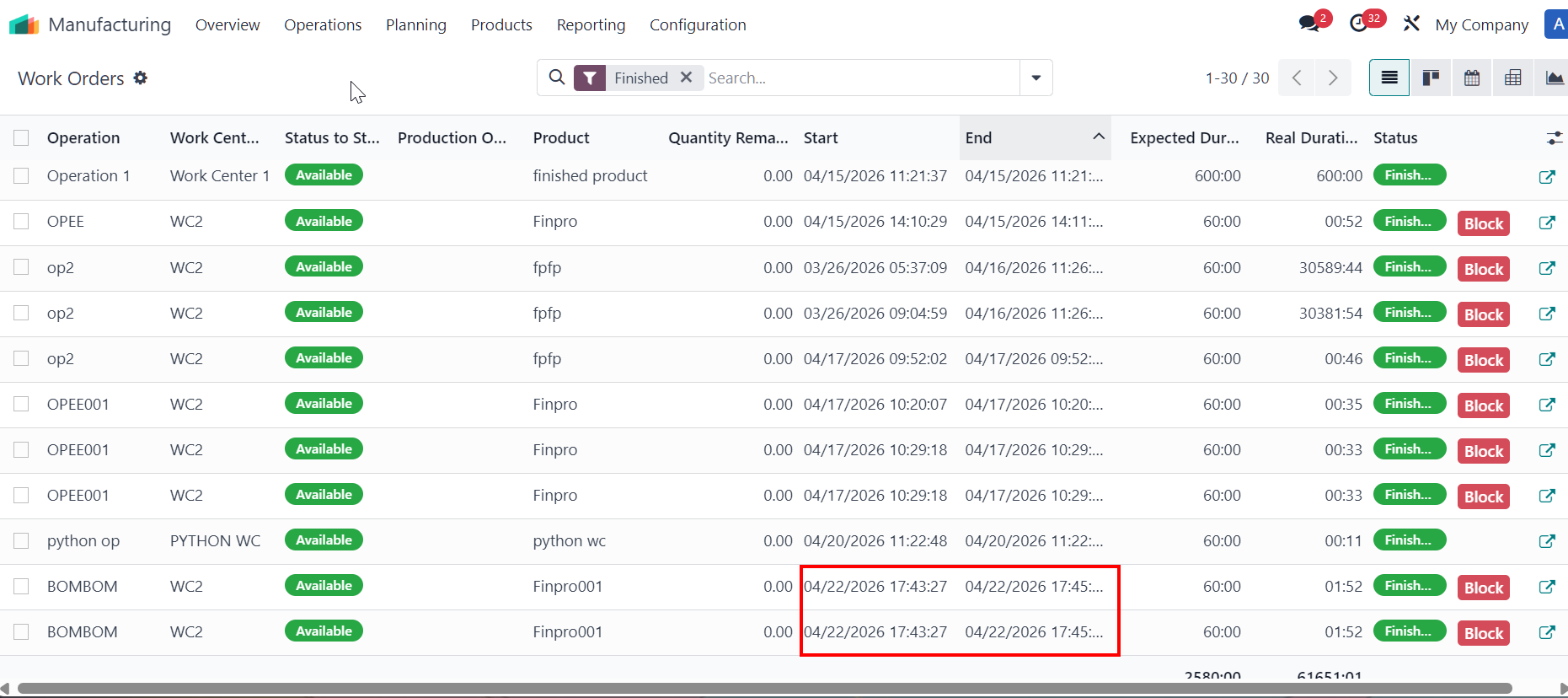
Once WOs are finished > Total Qty Done takes value from original production quantity field per work order, which is the total amount of finished goods. Since there are 2 WOs finished for the product > the total qty done = 2. | 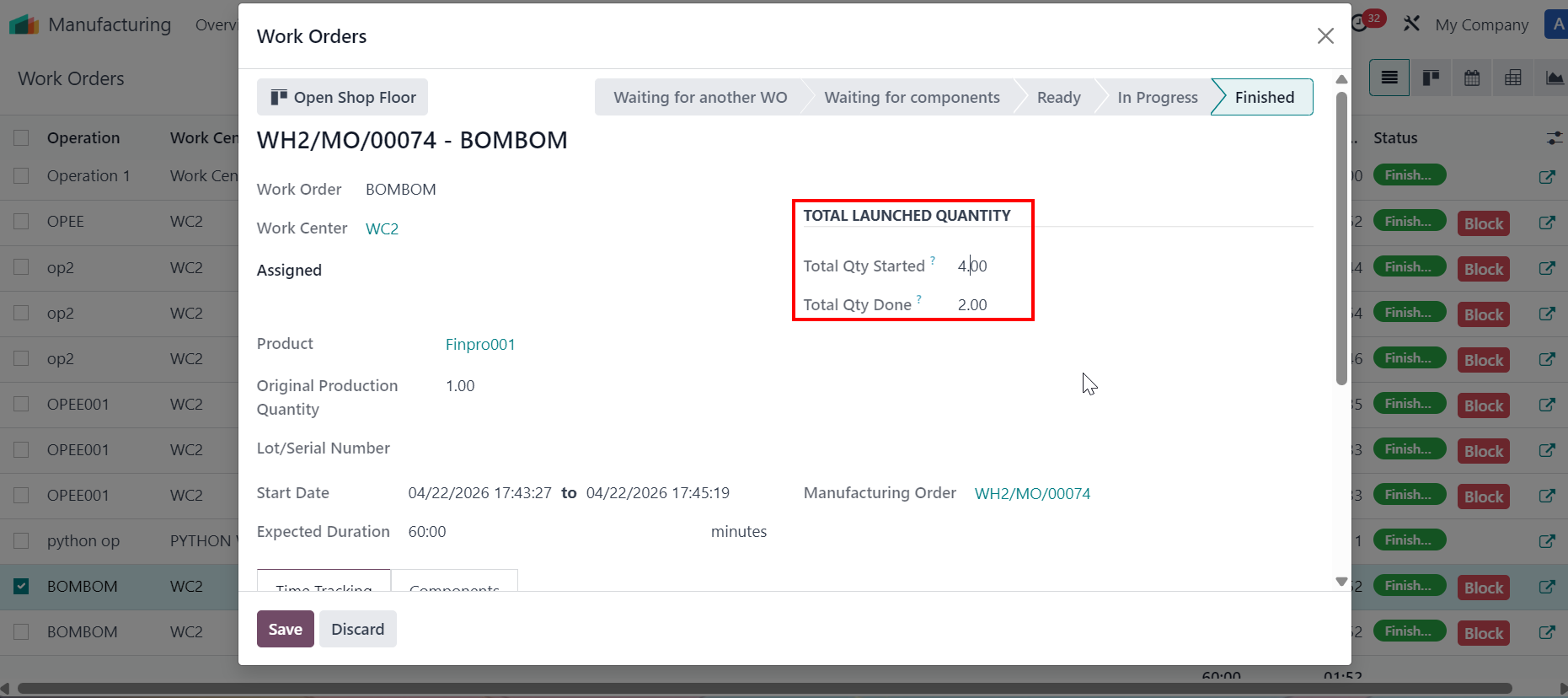 |
DELETE CONFIRMED/IN PROGRESS MANIFACTURING ORDERS
|   |