


ODOO'S FUNCTION
In Odoo:
- certain advanced functionalities, particularly in Manufacturing Resource Planning (MRP) and Product Lifecycle Management (PLM), are not natively available, which means users cannot set advanced product parameter management.
- when applying an ECO with translatable fields, only the current interface language is updated, while other languages remain unchanged
- have the 'Update BoM' button on the MO form, but no mass-update option
CLUEDOO'S FUNCTION
CLuedoo enhances this process by:
1️⃣ Seamlessly managing product parameter updates
2️⃣ Allowing users to update a translatable field in a specific language by explicitly choosing which language the change should apply to
3️⃣ Update new BoM version on draft/confirmed MOs
1. In Inventory → Configuration, we can set the Product Target Parameter Type. Set the code and select the value type (Text, Number, Boolean, Selection, Required Field Check, Matching Field Value). |  |
2. On the product, we can set the product parameter(s), as well as its type and value. | 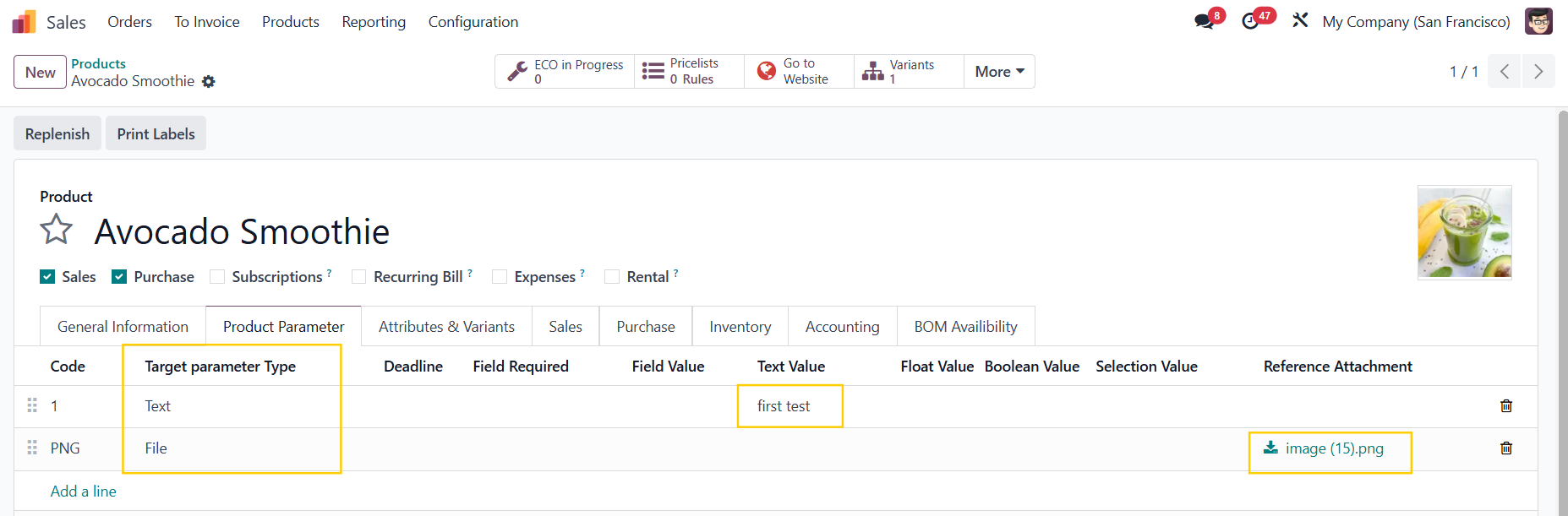 |
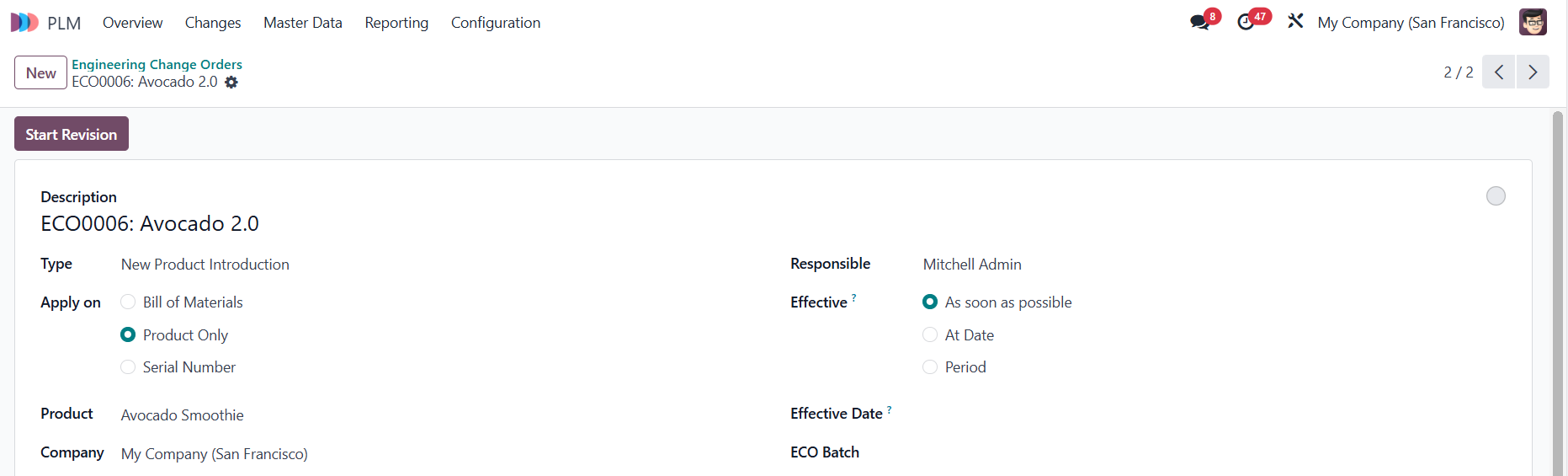
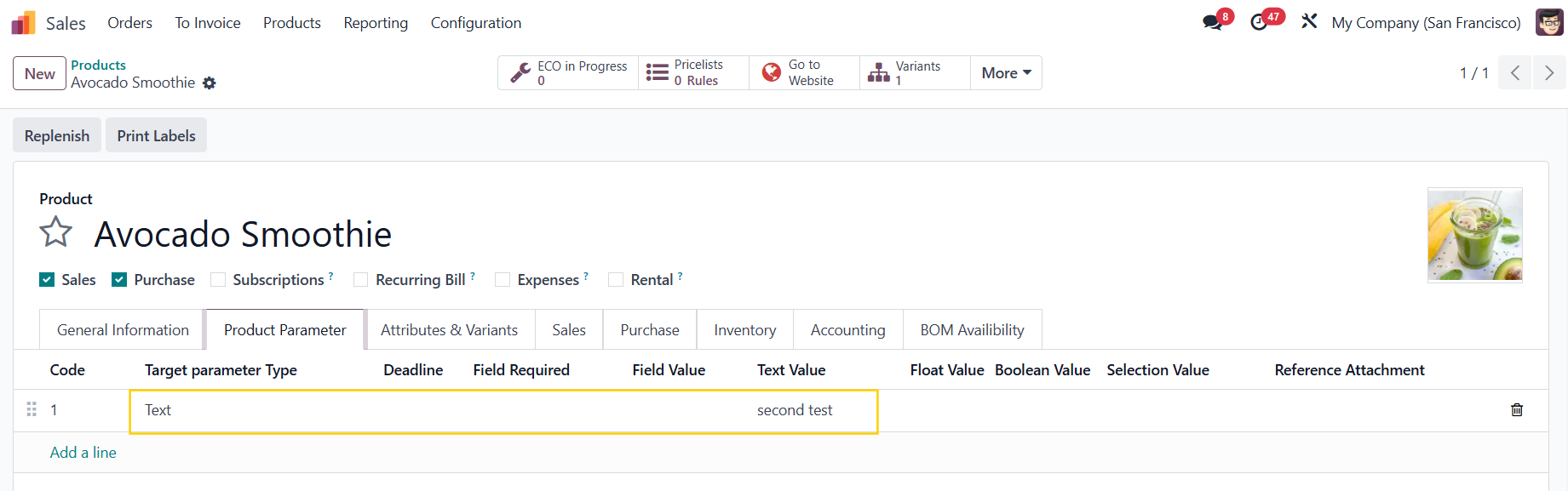
3. Create an ECO and select the product > Click Start Revision. When the stage is In Progress, we can add/change a new value, or remove a value in the Product Parameter tab > Update State. |
|
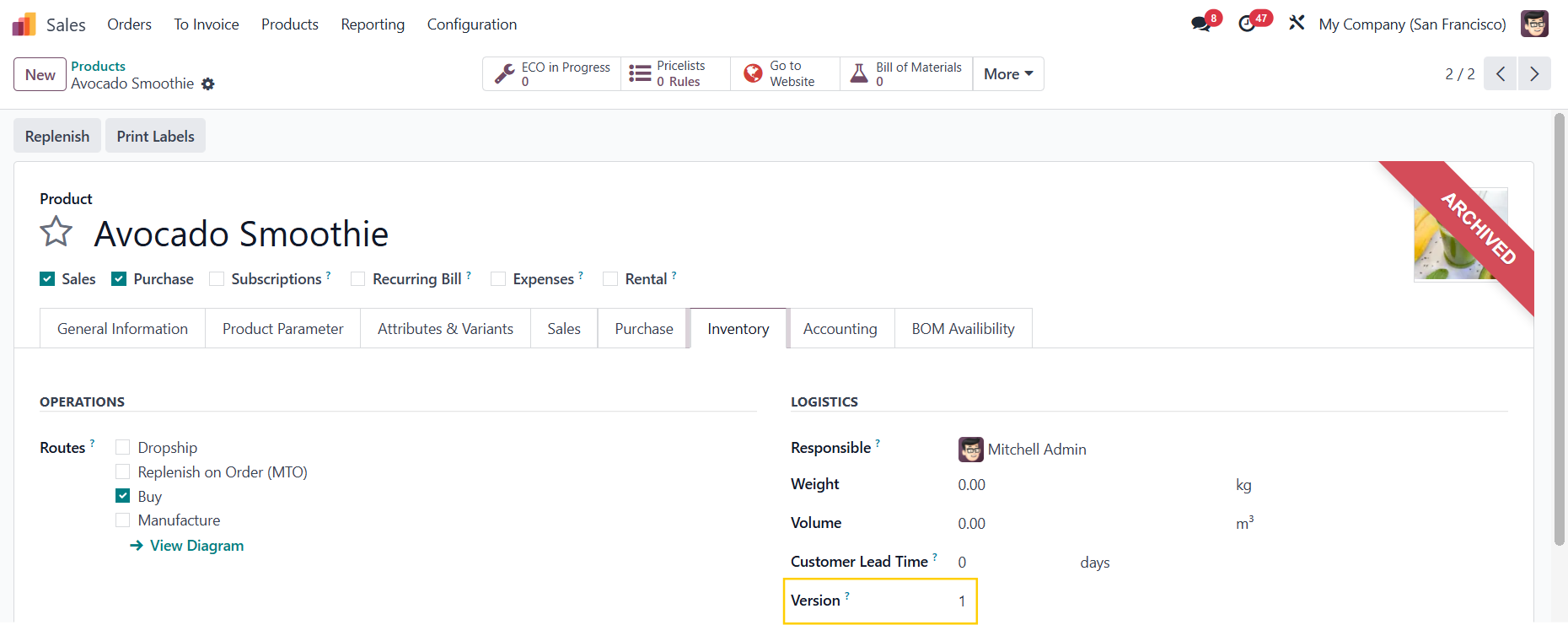
4. Apply Changes > When the ECO stage changes to Effective, the old version of the product will be archived, and a new version will be created with the changes for the parameters. |
|
5. An ECO In Progress smart button is added to the product form to track the progress easily. Note: If you are not a PLM User/Administrator, you will not see this button. |  |
LANGUAGE SELECTOR IN ECOCreate an ECO > Under the Product Changes tab, specify which language the change should apply to in the language field, and input the new value in the Char Values field. For example, even though you are using Odoo in English, the name of the product "Coca Cola" in Chinese is updated without affecting its name in English. If you do not choose a language, the change will be applied to the language that you are using (English). | 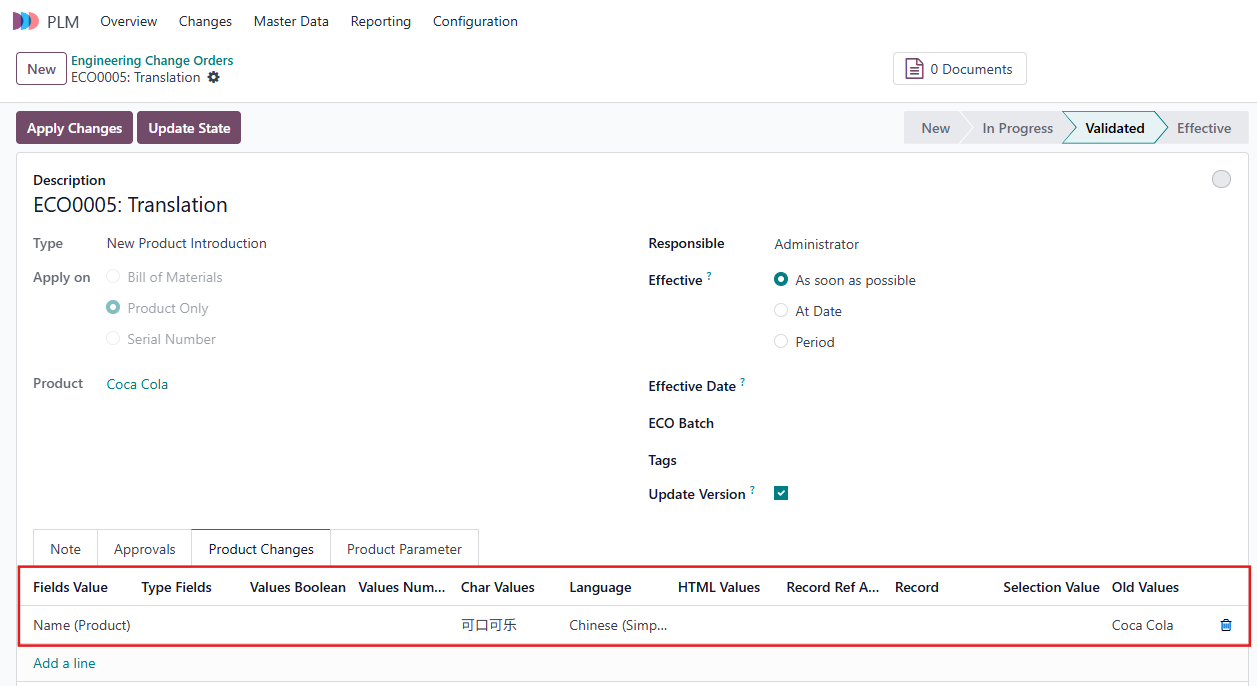 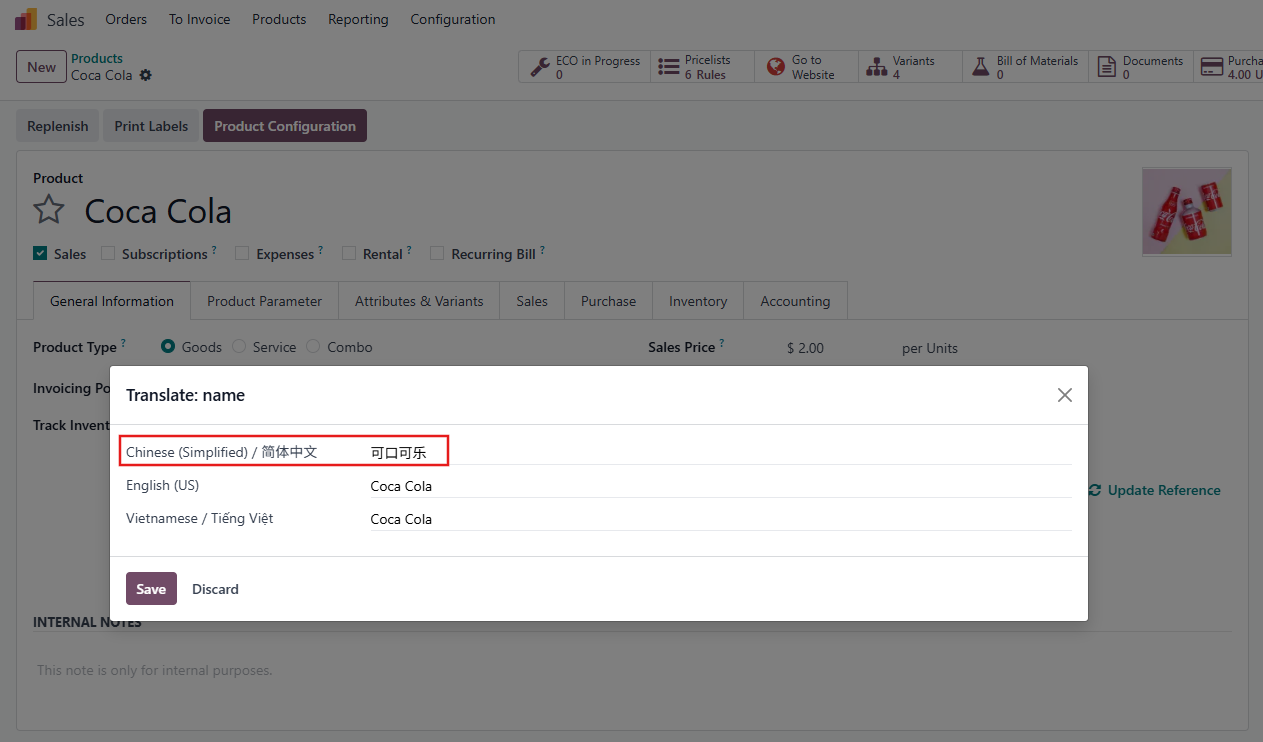 |
Note that it applies to all translatable fields. |  |
UPDATE NEW BOM VERSION ON DRAFT/CONFIRMED MANUFACTURING ORDERSServer Actions on BoM
| |
1. Go to Manufacturing > Create a new Manufacturing Order or choose an existing one. State could be either Draft of Confirmed. | 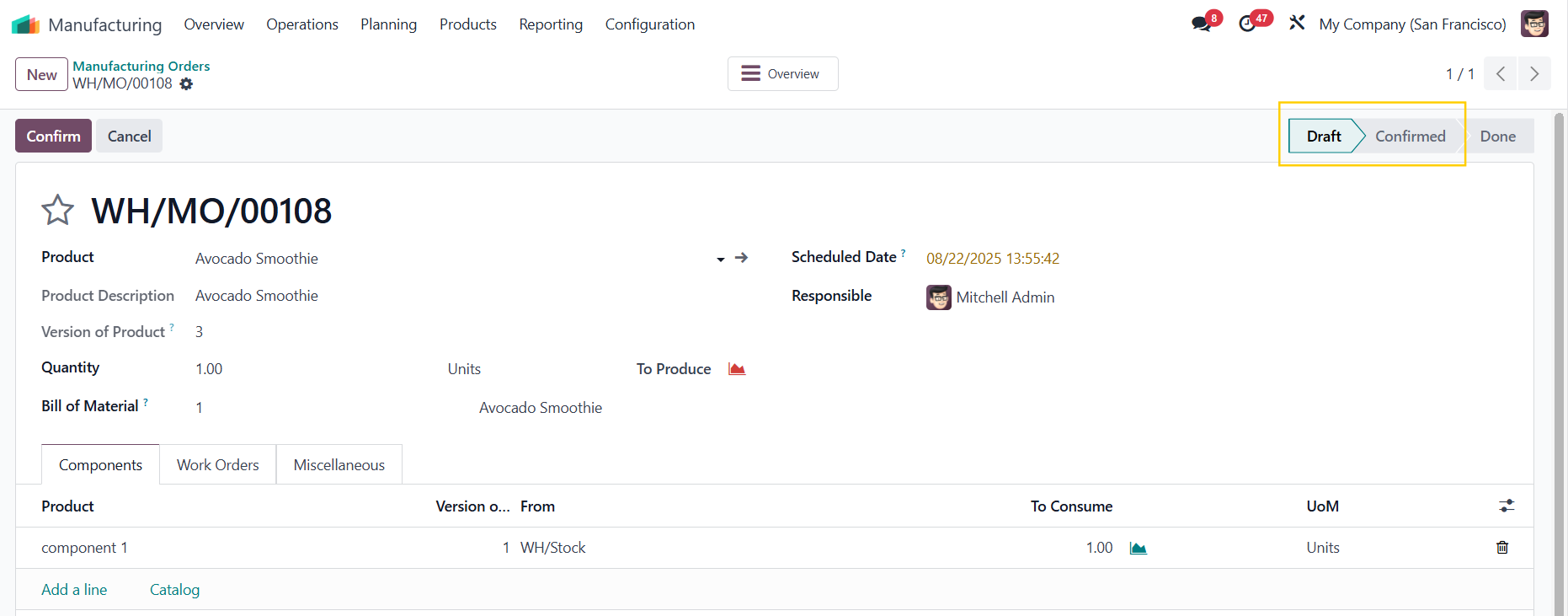 |
2. Go to ECO and create a new version of the BoM. | 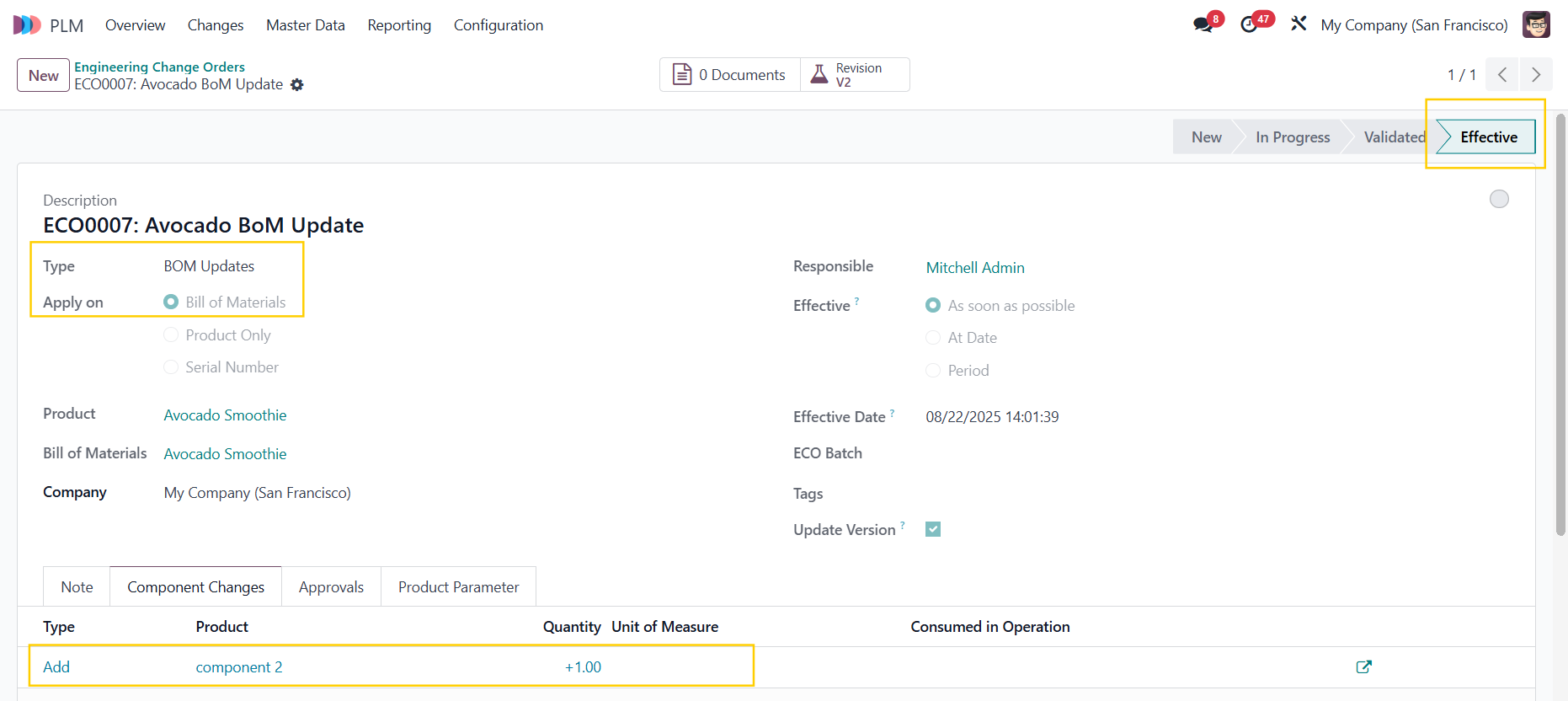 |
3. Go to Bills of Materials > Choose the BoM(s) that you want to update > Choose the appropriate server action. | 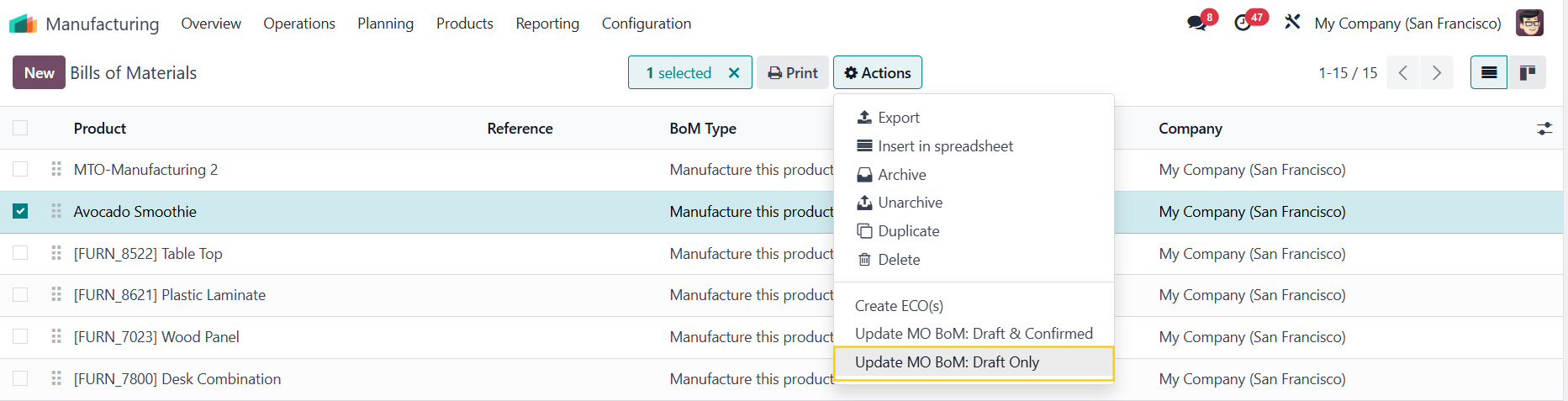 |
4. Go back to the MO > The new BoM has been updated. Note that the server actions apply to multiple BoMs and MOs. The example shows only 1 MO and 1 BoM to avoid confusion. | 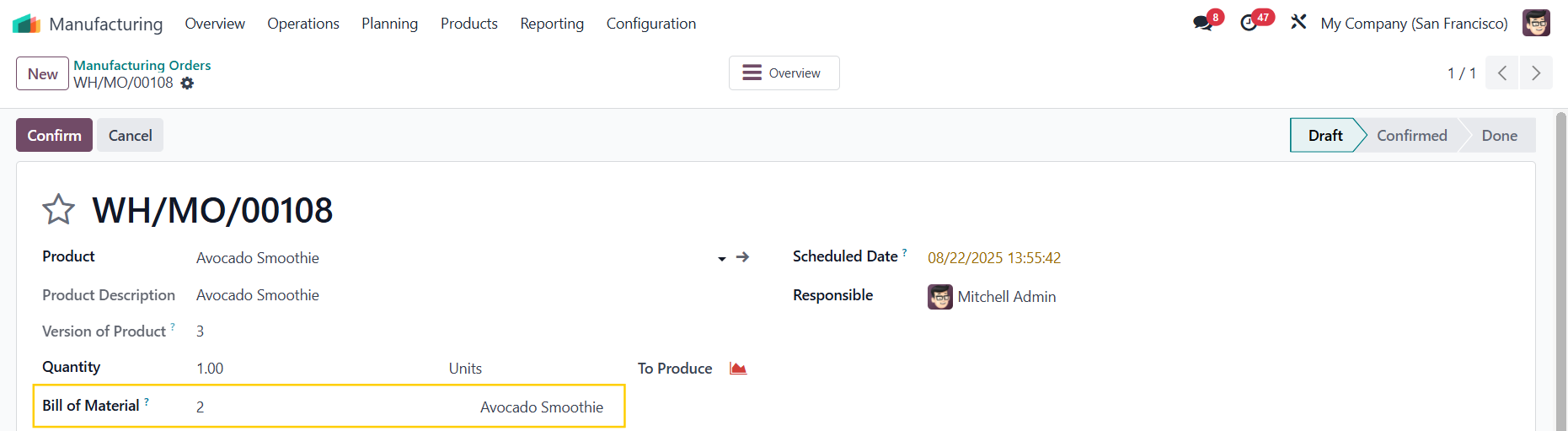 |
Filter on Manufacturing Order On Manufacturing Orders, we have a filter called BoM Not Updated to easily identify MOs that are not using the latest BoM version (i.e., those using an archived BoM). | 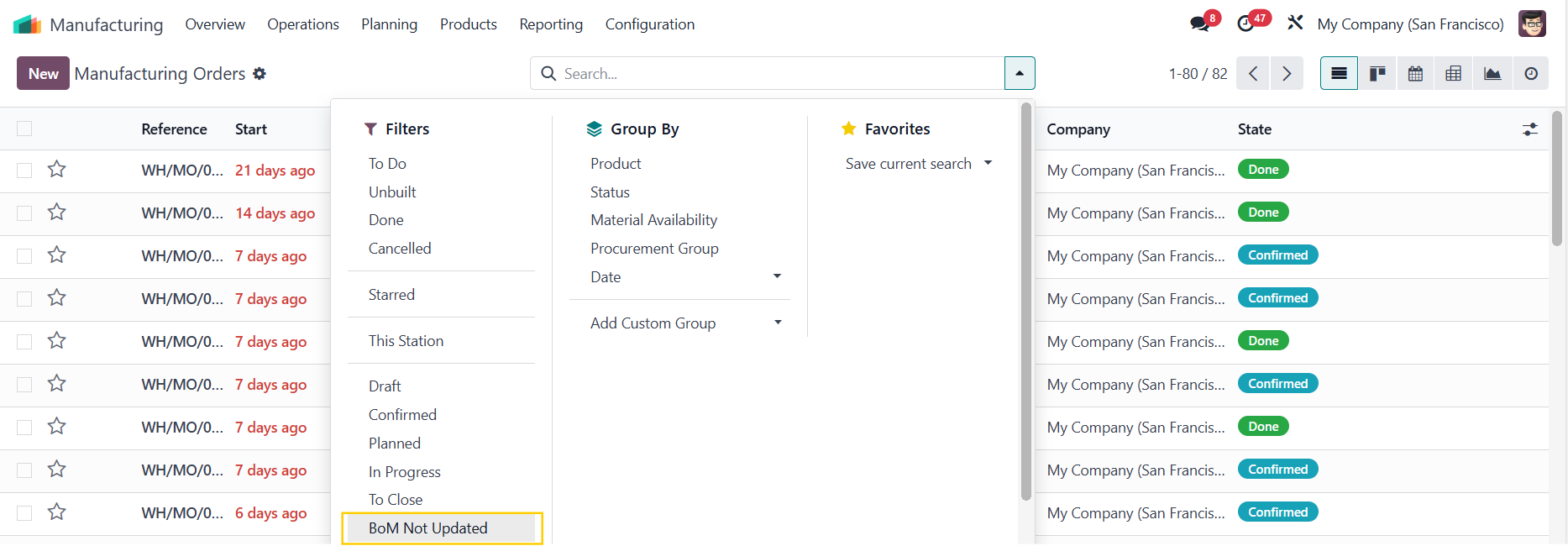 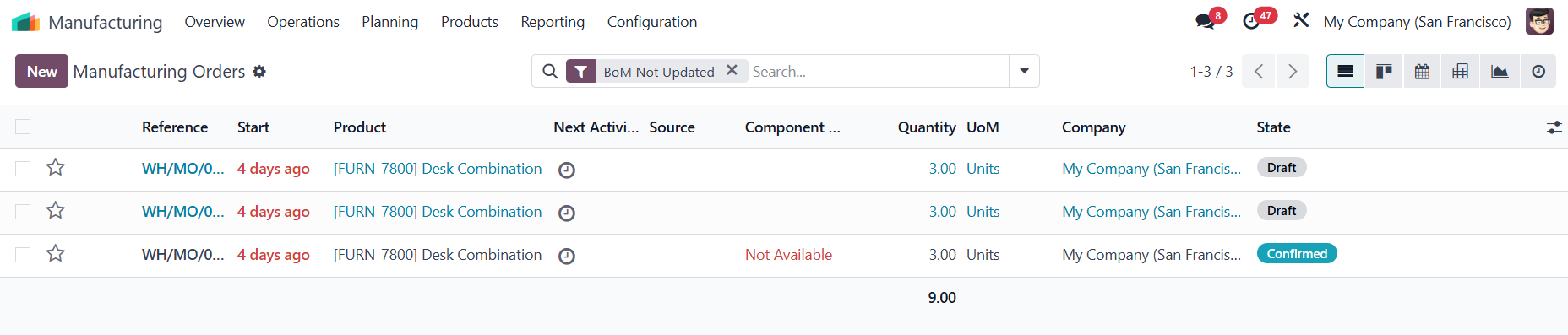 |
Server Action on Manufacturing Order Select the MOs that you want to update the new BoM version > Actions > Select Mass Update BoM > All the MOs will have the new BoM. | 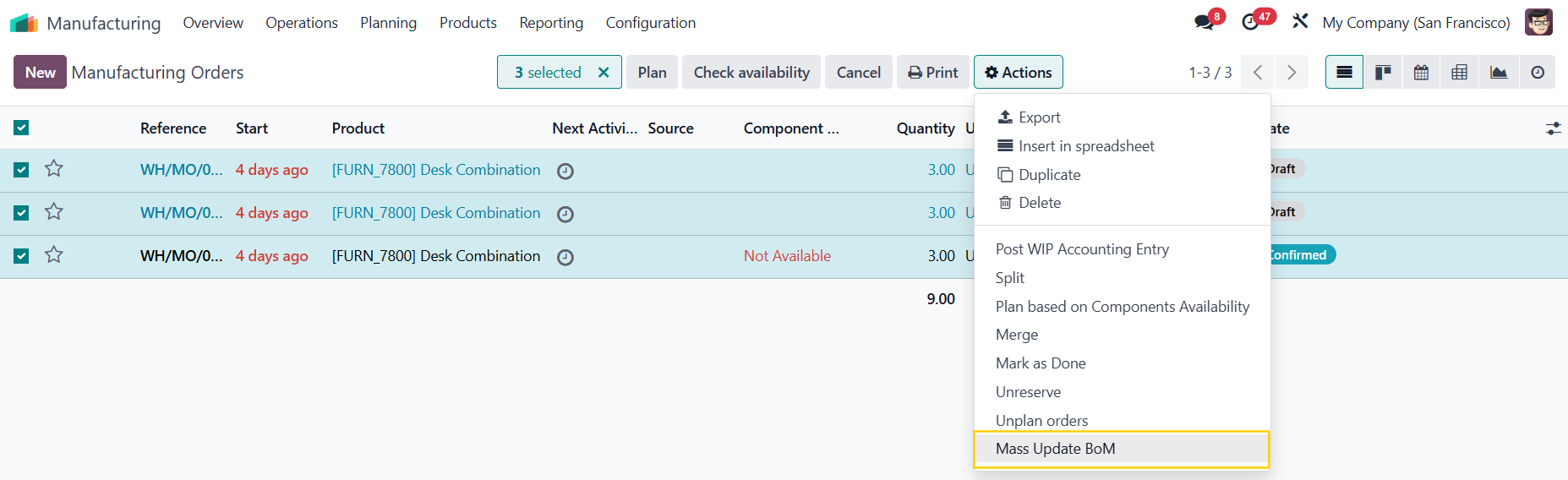 |