


ODOO'S FUNCTION
Odoo's standard Blanket Order (Purchase Agreement) screen only displays the total Ordered Quantity for each line. This makes it difficult for purchasing managers to quickly assess the status of a long-term agreement, as there is no direct visibility in the list to see how much of the order has already been Received from the vendor or how much has been Billed against that line without clicking into each one.
CLUEDOO'S FUNCTION
Cluedoo enhances the purchase order line view by introducing:
- A "Received" column to show the delivered quantity.
- A "Billed" column to show the invoiced quantity.
This allows users to see the received and billed quantities for each line directly from the blanket order.
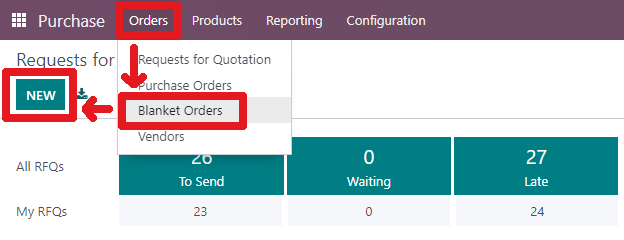
1. (If you already know how to create a blanket order, please skip to step 4) On the Purchase app, Orders > Blanket Orders > Create new one From V19: Go to Purchase > Orders > Purchase Agreement > Create new one | 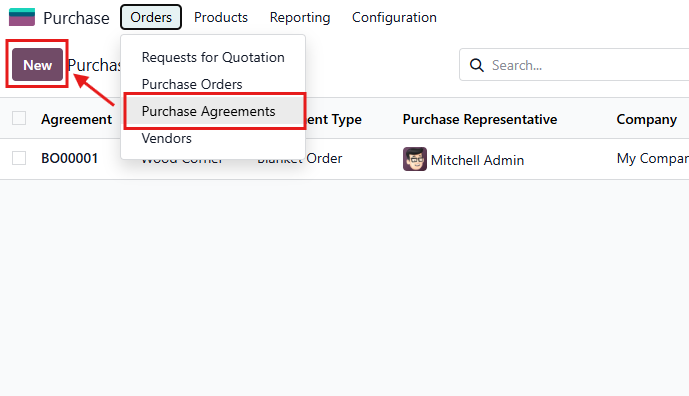 |
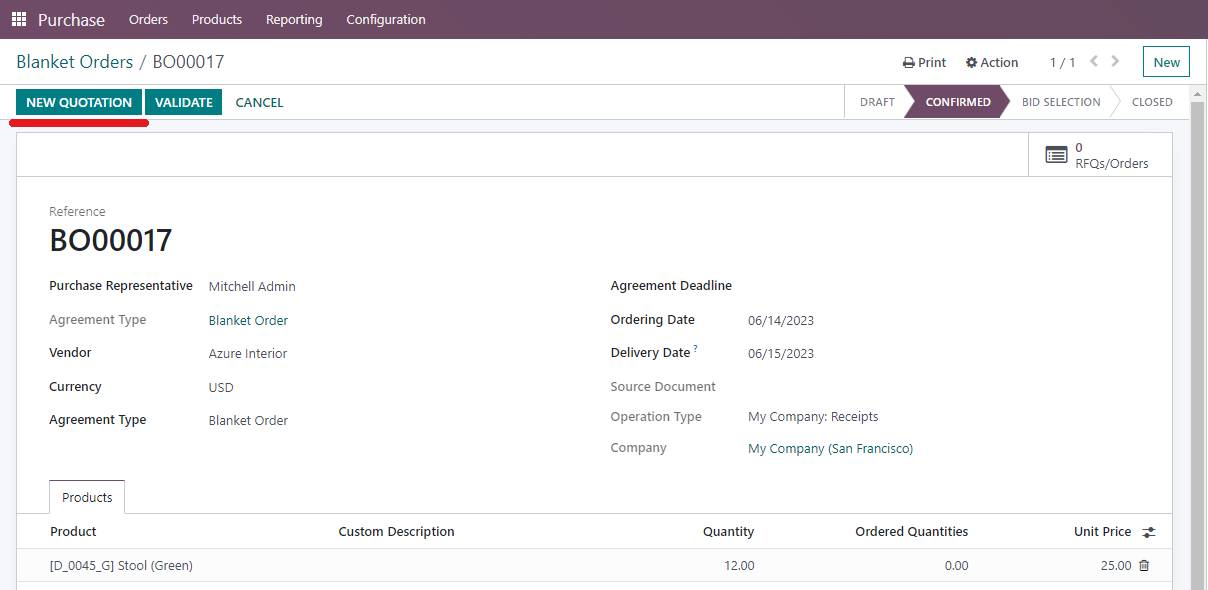
2. Create a new Blanket Order:
Then you can request a quotation by clicking on "New Quotation". From V19, it looks like this | 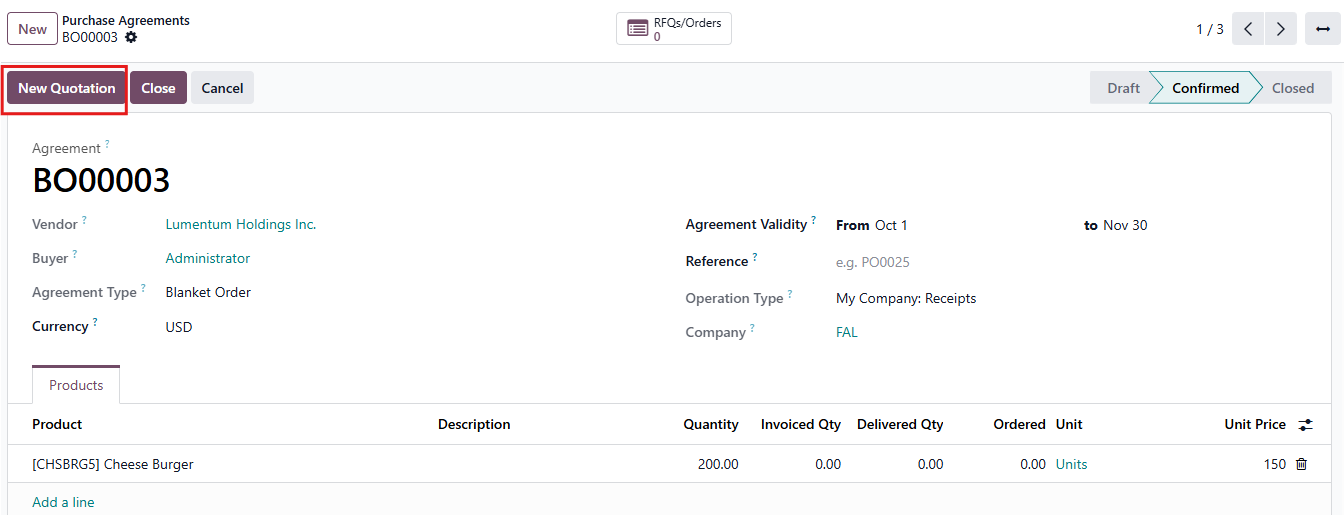 |
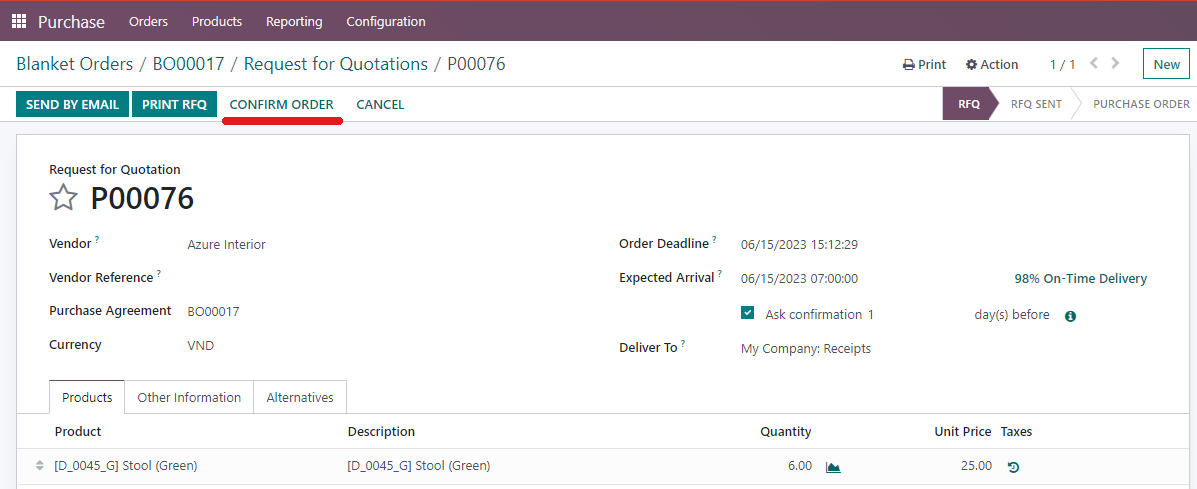
3. Create a new Purchase Order:
Click on "Confirm Order" > Receive | |
4. Now you have your new Purchase Order. You can see the two new columns:
From now, as the products are received and invoiced, this menu will also update accordingly.
From V19, it looks like this | 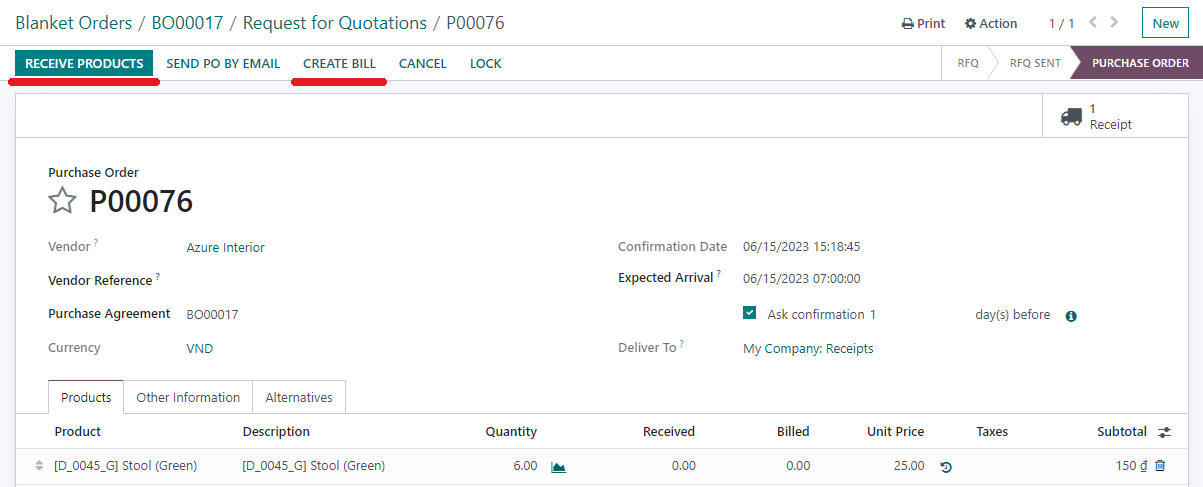  |
Result:
From v19, it looks like this | 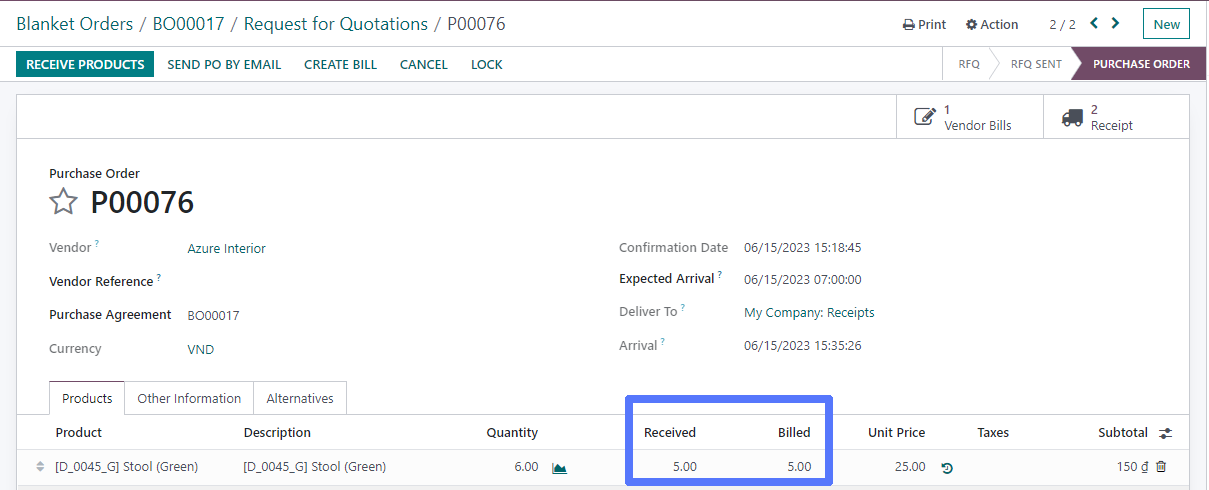 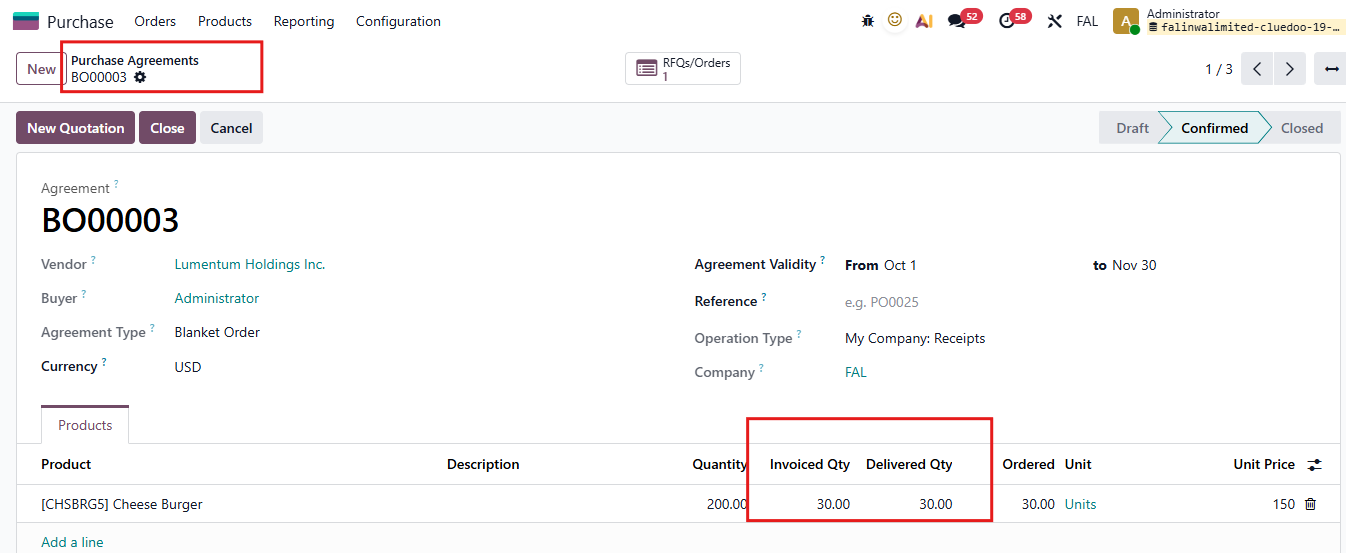 |